LED screens that light the room in Unity
A bright screen in Unity glows on camera but leaves the room dark. How bloom, realtime GI and added lights differ, and how LED Studio boards feed Unity's GI.
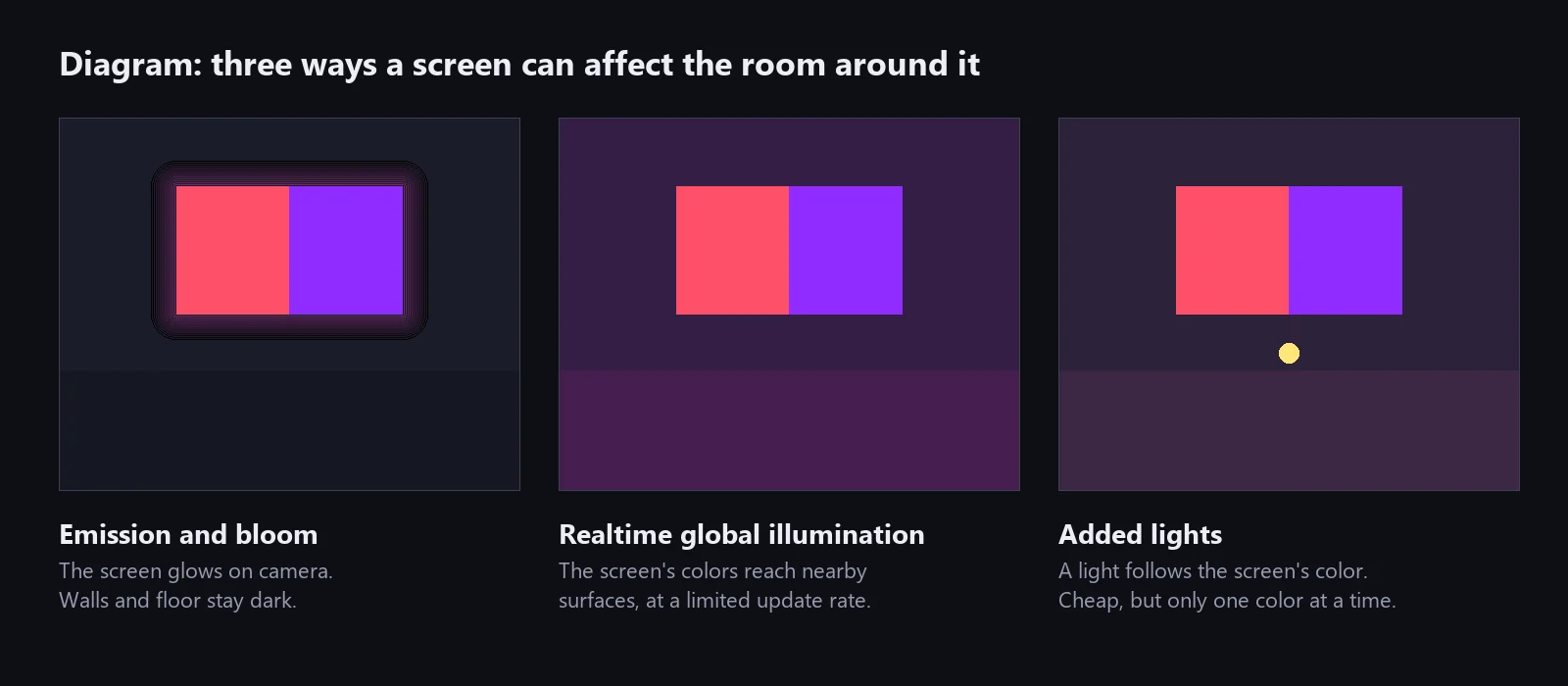
Put a bright video on a TV or LED wall in a dark Unity room and the screen itself looks right, but the walls, the floor and the faces in front of it stay dark. The question keeps coming back on Unity Discussions, for example about LED display emission with a movie and an emissive TV. The short answer is that glow and light are different things. This page separates the three routes in the diagram above and shows how LED Studio boards feed Unity’s own realtime global illumination.
Glow, global illumination and added lights
- Emission and bloom. An LED Studio board is an HDR light source to the camera, and bloom spreads its brightest pixels into the image. That sells the glow, but no surface in the scene receives light, and LED Studio does not enable project lighting effects for you.
- Realtime global illumination. Unity carries the screen’s emitted colors to nearby surfaces. It is the only route where a red left half and a blue right half tint the room differently, but it needs setup and updates at a limited rate.
- Added lights. A spot or point light in front of the screen takes on the screen’s average color. It is cheap and works in any pipeline, but it shows one color at a time.
Baked lightmaps and Adaptive Probe Volumes are computed ahead of time, so on their own they cannot follow a live image.
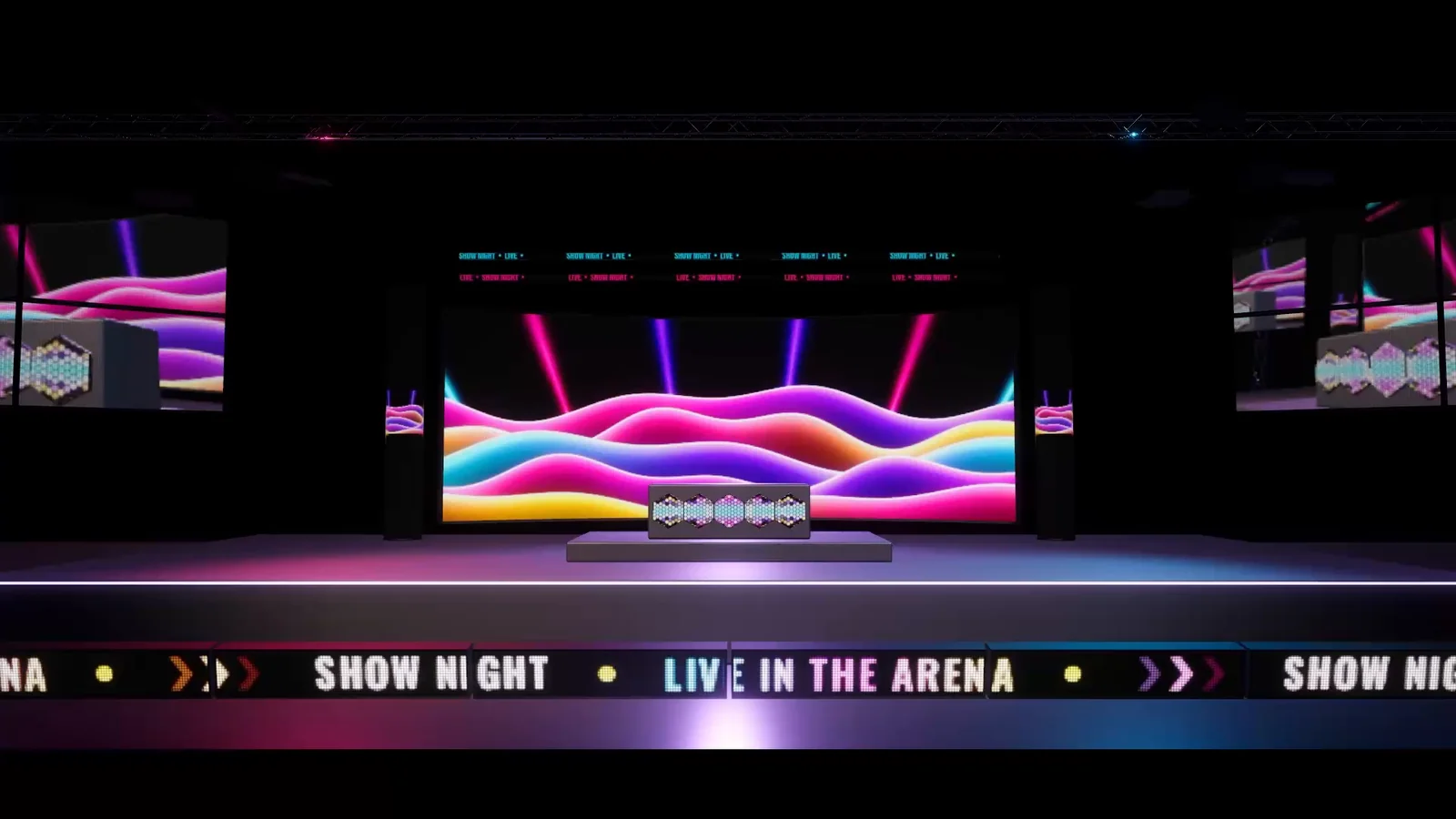 A frame from the arena film: emissive LED boards with bloom around a dark stage.
How a board feeds realtime GI
The board controller reuses its live board texture as physical emission on its own material instance, without changing your material asset. That emission keeps the image’s spatial colors, the brightness response, the emitter fill area, cabinet masks and defects, while camera glow and presentation backgrounds light nothing. There is no per-LED light, no second emission texture and no CPU readback. Which backend carries the light depends on the project:
- Enlighten realtime GI. Unity documents it for Built-in, URP and HDRP through Unity 6. Unity’s route for a changing emissive image is a realtime emissive material plus
RendererExtensions.UpdateGIMaterials, and the controller schedules those updates itself, coalesced and limited to four requests per second by default. Enlighten needs precomputed lighting, fixed geometry and a persistent face mesh with GI UVs and a valid realtime lightmap binding. Generated topology meshes are not a saved precompute identity, so give the board a saved mesh: boards can target an existing renderer and keep custom meshes. Receivers use lightmaps. Updates arrive asynchronously, which suits room color and slow changes better than single fast flashes. - HDRP screen-space GI. It uses the board’s emission from what is visible on screen, so a board outside the view is not a reliable light source.
- HDRP ray-traced and Mixed GI. These use native ray-tracing passes and need ray tracing configured, a supported graphics API and hardware, and a ray tracing layer mask that includes the board and its receivers.
Control the Enlighten contribution
The optional LedRealtimeGIPublisher component sets the policy for Enlighten. Turning off Contribute to GI, or disabling the component, clears the board’s contribution while the board stays visible. Pause Updates keeps the last sampled lighting. Updates Per Second sets the sampling rate between 1 and 10. Removing the component returns the board to automatic publication, and scripts use the ContributeToGI and PauseUpdates properties. None of these switches affect HDRP screen-space or ray-traced GI, which read the shader’s emission directly.
Try the Realtime GI example
Open Examples/03_RealtimeGI/Realtime GI.unity and enter Play Mode. A single 192 x 96 board starts with a warm and cool Split image and its Swapped Split, then cycles through Dark, Warm and Cool with nine-second holds and short fades. The pale room, two receiver plinths, graphite housing, neutral fill and camera stay fixed, and no lights are driven by the content. Both split images have the same average color, so when the receivers’ hues follow opposite halves of the board, you are seeing transported light and not bloom. Its README covers the Enlighten settings, the HDRP setup with fixed exposure and why camera bloom stays off while you compare receivers.
A light that follows the screen
Where realtime GI is not available, a light can stand in for it. This is your own script, not an LED Studio feature: it averages the board’s OutputTexture on the GPU and tints a light placed just in front of the screen.
using LEDStudio;using UnityEngine;using UnityEngine.Rendering;
public sealed class ScreenColorLight : MonoBehaviour{    [SerializeField] LedBoardController board;    [SerializeField] Light screenLight;    [SerializeField] float followSpeed = 4f;
    RenderTexture _small;    Color _target;    bool _waiting;
    void Update()    {        screenLight.color = Color.Lerp(screenLight.color, _target, followSpeed * Time.deltaTime);        Texture output = board.OutputTexture;        if (output == null || _waiting) return;        if (_small == null)            _small = new RenderTexture(16, 16, 0, RenderTextureFormat.ARGB32) { useMipMap = true, autoGenerateMips = true };        Graphics.Blit(output, _small);        _waiting = true;        AsyncGPUReadback.Request(_small, _small.mipmapCount - 1, TextureFormat.RGBA32, result =>        {            _waiting = false;            if (result.hasError) return;            _target = result.GetData<Color32>()[0];        });    }
    void OnDestroy()    {        if (_small) Destroy(_small);    }}
The trade-off is the one in the diagram: one light means one color, so a split image tints the room with its average, and the light’s falloff only approximates the shape of the screen. Read a VideoPlayer’s render texture instead of board.OutputTexture and the same script works for a plain TV screen.
Where to go next
Decide on the backend first, keep camera, exposure and fill fixed while you judge receivers, and check the supported Player as well as the Editor. The Realtime Lighting manual page summarizes the GI rules, LED Display Basics covers brightness and bloom on the screen itself, and the Runtime API page lists OutputTexture with the other board members.
Frequently asked questions
Does bloom make a screen light the room in Unity?
No. Bloom is a camera effect that spreads bright pixels across the image. Walls, floors and characters only change when light reaches them, through realtime global illumination or an actual light.
Can baked lightmaps or Adaptive Probe Volumes follow a video on a screen?
No. Both are computed ahead of time, so they cannot follow arbitrary live images. Use realtime global illumination or a light driven by the screen's color.
Why does my LED board not light the room with Enlighten realtime GI?
Check the requirements: precomputed realtime lighting, a persistent board mesh with GI UVs, a valid realtime lightmap binding and receivers that use lightmaps. Updates are asynchronous and rate-limited, so give them a moment to settle.
Does LED Studio create a light for every LED?
No. The board publishes its live content texture as emission to Unity's own global illumination. There are no per-LED lights, no second emission texture and no CPU readback.
LED screens, walls and signs that look like real hardware.
Keep reading
 Use case
Video and live camera feeds on LED screens in Unity
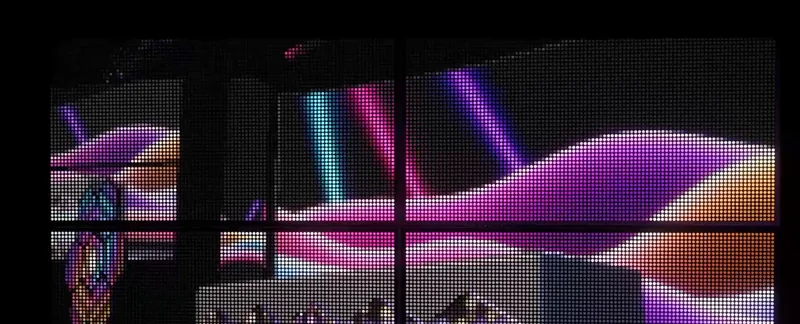
A Video Player writing into a render texture on a quad gives a flat TV. LED Studio takes the same video, camera or UI output as a source, reduces it to an emitter grid, layers it with graphics, sequences it in playlists and keeps screens in step.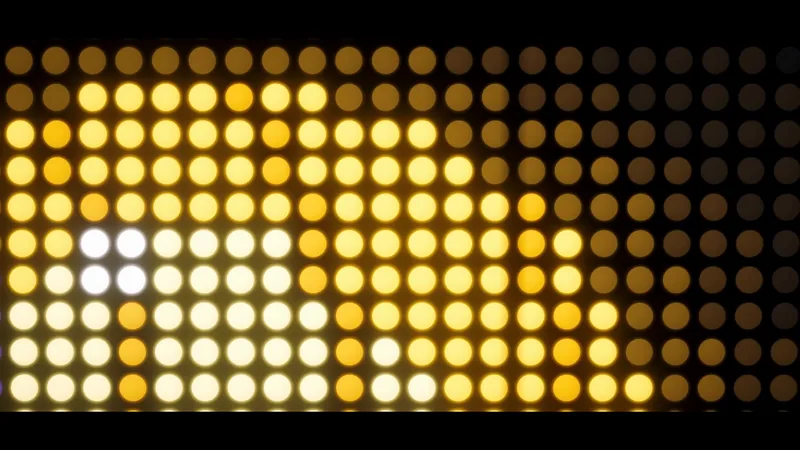 Use case
Make a realistic LED screen in Unity
An emissive texture with a dot mask stops looking like an LED wall once the camera moves. LED Studio models pitch, emitters and cabinets first, then its LED Board shader presents them from close-ups to the far end of a venue.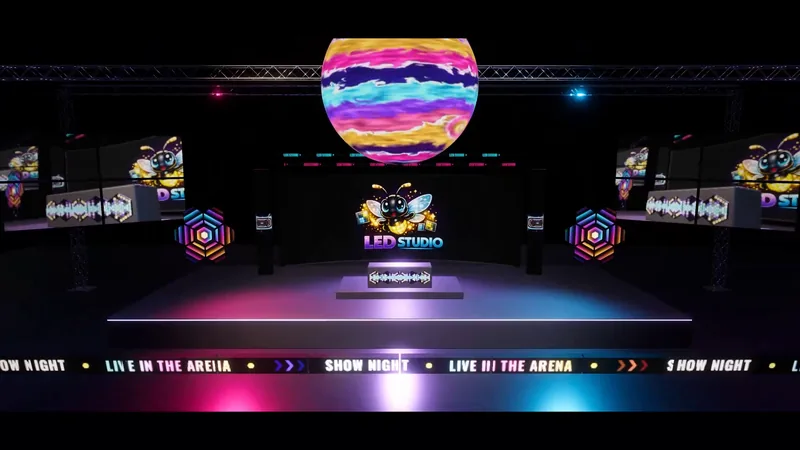 Use case