Stadium screens, scoreboards and perimeter boards in Unity
Build stadium screens, scoreboards and perimeter LED boards in Unity: live scores and clocks, sponsor playlists, synced ribbon boards and camera feeds.
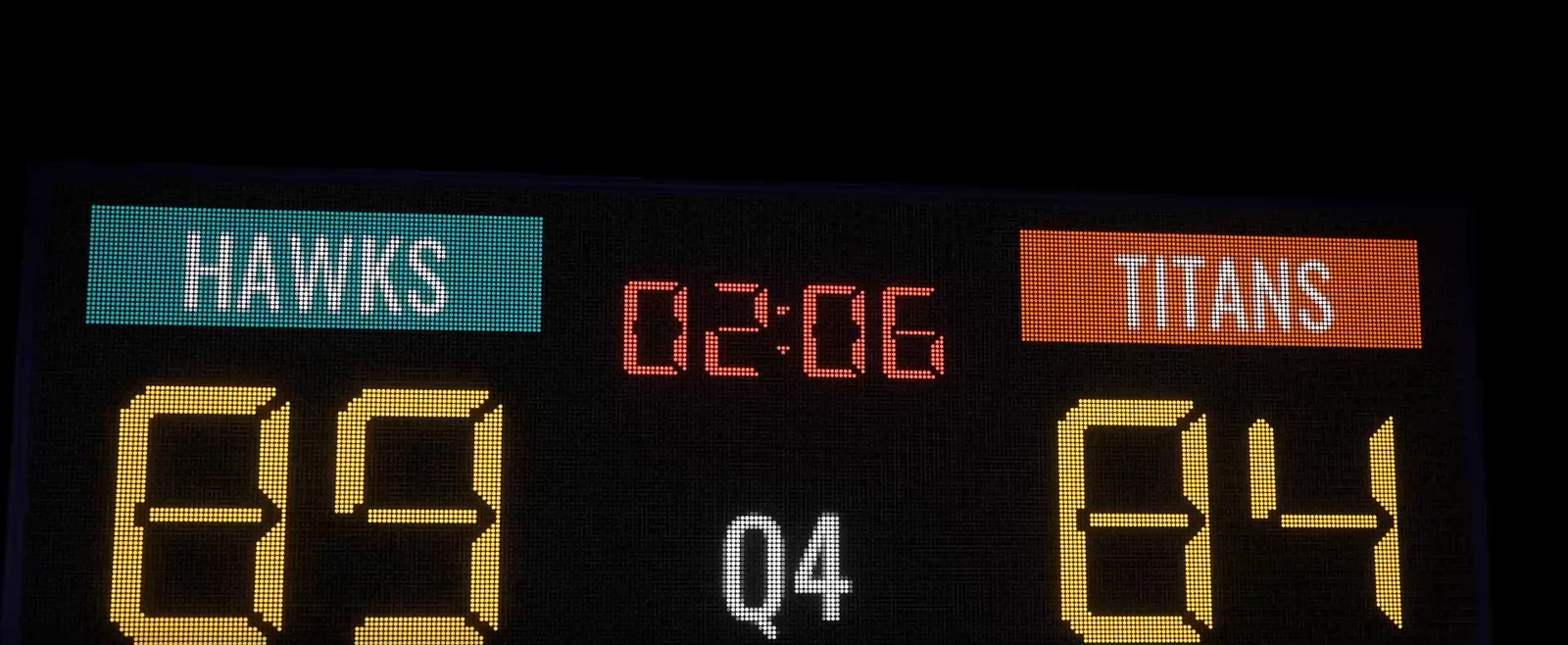
A stadium in a sports game or a venue visualization needs more than one screen: a big center screen, a scoreboard, ribbon boards along the stands and perimeter boards around the field, all showing game data and sponsor loops. Built from textured quads, each of them needs its own content code and still looks like a flat picture. LED Studio models every display as an LED board with the right pitch and shape, takes scores and clocks from game code, rotates sponsor reels on a schedule and keeps grouped panels in step.
Venue displays and the presets that match them
Most venues combine four kinds of display, explained in more depth in how stadium LED systems work. The Board Wizard has a starting point for each:
| Display | Typical content | Board Wizard style |
|---|---|---|
| Center screen or videoboard, often called a jumbotron | Replays, live camera, graphics | Jumbo Tron (256 x 192 at P10) or Video Wall (2 x 2 panels) |
| Scoreboard | Teams, score, period, clock | Scoreboard (192 x 108 at P5) |
| Ribbon and fascia boards | Crawls and sponsor loops along the stands | Ribbon Board (512 x 16 at P3.9) or Ribbon Group (three panels) |
| Perimeter boards | Sponsor messages around the field | Ribbon Board or Ribbon Group with a playlist |
The wizard creates the board, its LED material and a Text source. Ribbon Group, Video Wall and Hex Panel Wall create a board group instead, with a Panel Gap for the physical spacing between housings. From LED Studio 1.7.0, the Arena Showcase example plays a 50-second film through a concert and sports arena that combines these displays.
Scores, clocks and zones
Scoreboard data has its own sources. A Score source shows home and away labels, both scores, the period and a clock, and a Timer source counts down in minutes and seconds. Place each in a zone, a normalized rectangle on the board, and add a scrolling Text source as a strip underneath for a crawl. Game code pushes new values:
// Sketch: board is the scoreboard's LedBoardControllerboard.SetScore("89", "84", "Q4", "02:06");board.SetSourceText("crawl", "NEXT HOME GAME SATURDAY");SetScore takes the home score, away score, period and clock as strings and reaches every Score source on the board; SetLabels on the Score source changes the team names. On a Timer source, SetTime, StartCounting and StopCounting run the countdown. Scoreboard digits are ordinary text on the emitter grid, so there is no separate seven-segment component: the examples bundle the DSEG7 Classic and DSEG14 Classic segment fonts as TextMesh Pro assets, and the same board can show a logo or a replay a moment later.
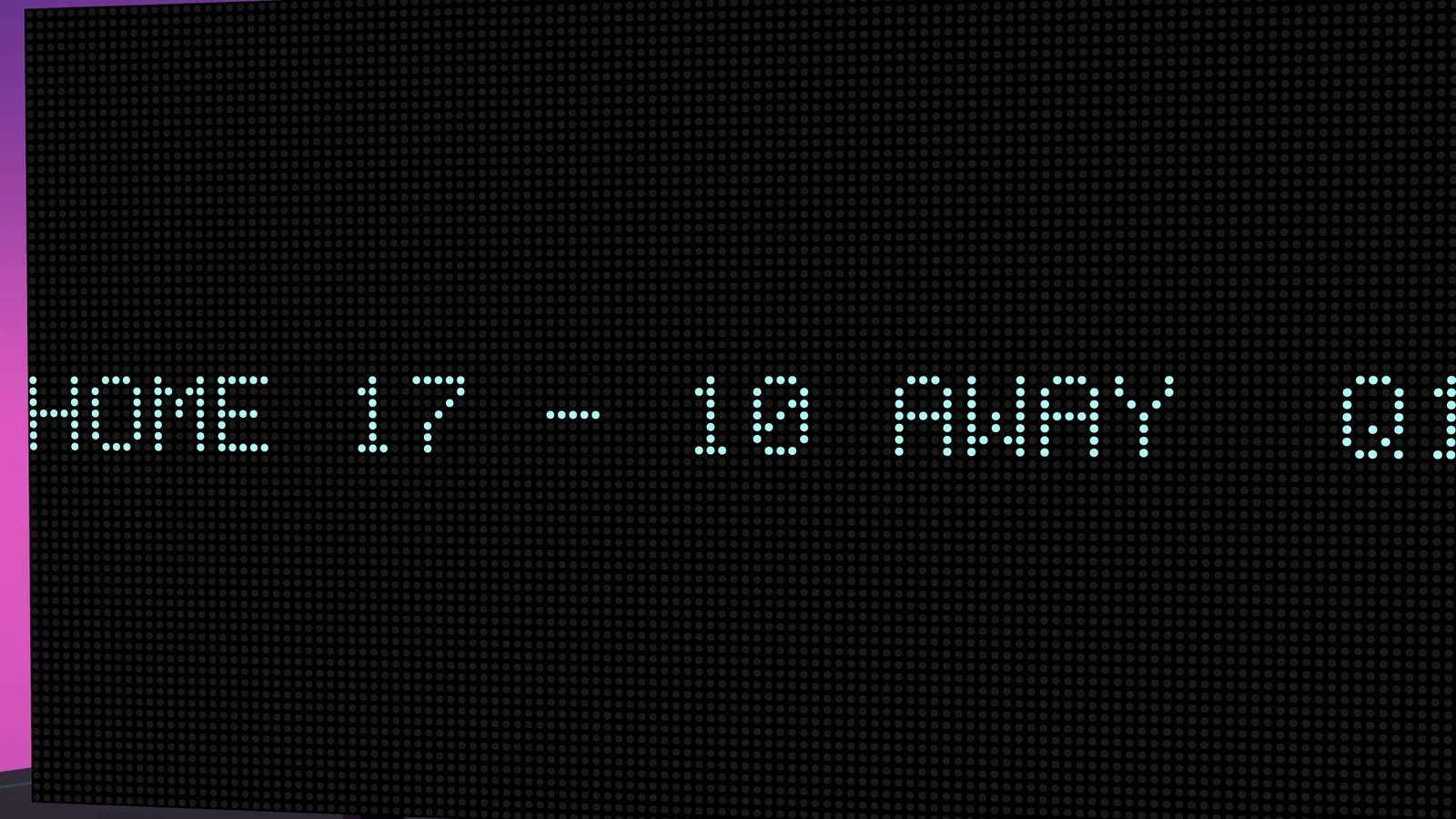 A text scoreboard reading HOME 17 - 10 AWAY in teal emitters, with the period label at the right edge.
Sponsor reels, ribbon groups and live feeds
Sponsor rotations are playlists. A Playlist Asset sequences Source Assets, such as a logo image or a text message, or reusable LED Compositions, each with a duration and one of 38 transitions or a hard cut. Playlists loop, and boards that share a sync group ID read from one clock, so perimeter boards running the same playlist change sponsors at the same moment.
A ribbon that runs along the stands works best as one display. LedBoardGroup composes a master canvas and slices it across its panels, so one crawl or sponsor reel moves continuously from board to board, while each panel keeps its own material, emitters and defects. Horizontal, Vertical, Grid and Radial layouts map the canvas across regular arrangements, and Spatial layout follows each panel’s physical position and size, gaps included.
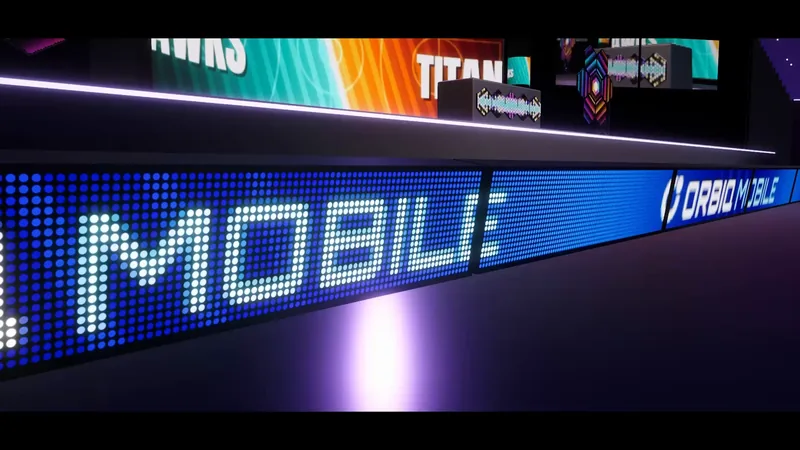
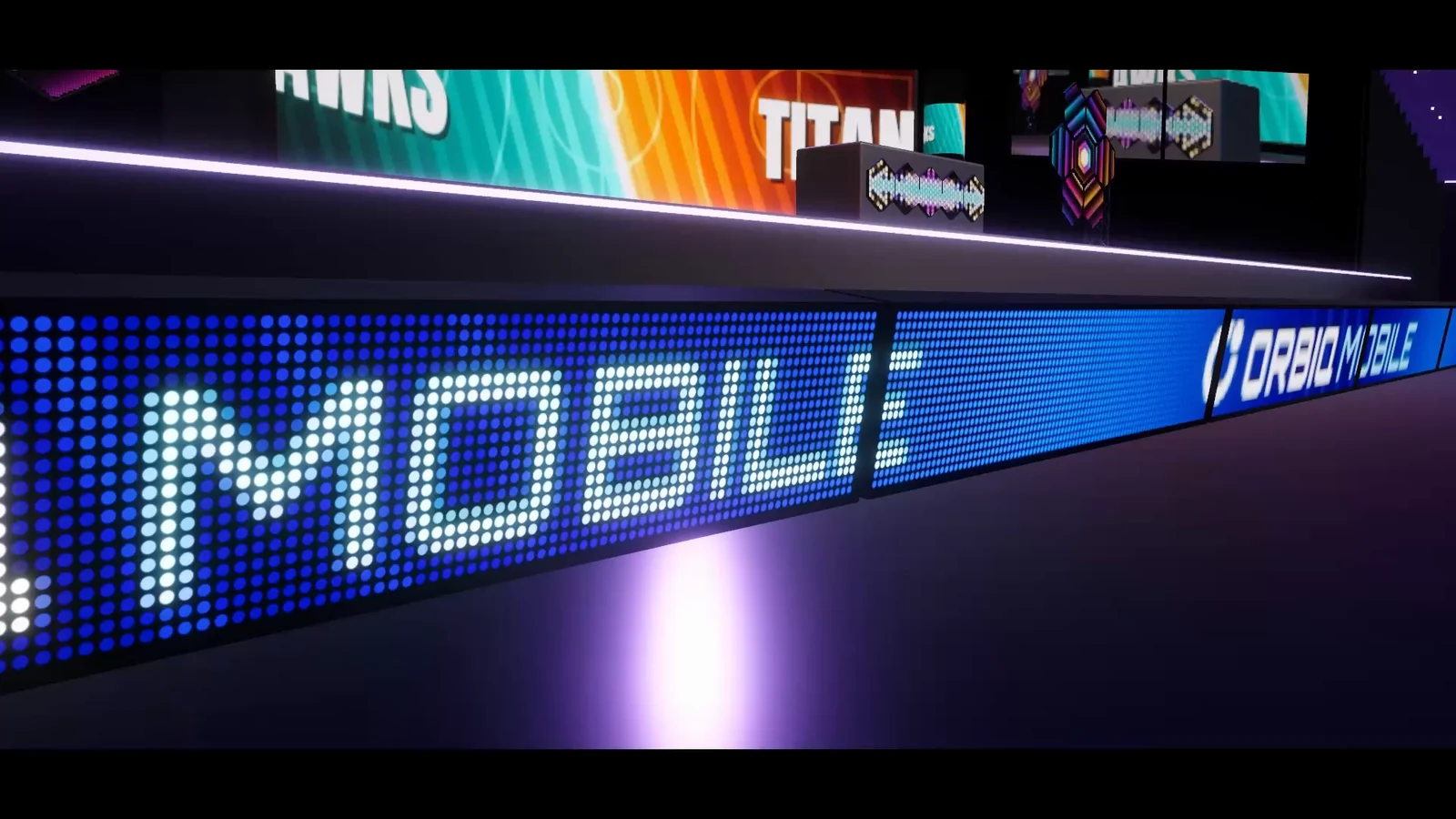 Perimeter boards along the court showing an ORBIO MOBILE sponsor message, with a larger screen behind them.
For the center screen, render a camera into a render texture and give the board a Render Texture source; video and camera feeds on LED screens covers that route and its options. Charts from Chart Guru appear through its optional LED Studio integration package, which adds a LedChartDataSource component, for example for live match statistics.
Use the screens of an existing stadium model
Stadium environment packs often come with their own screen meshes, and those can become LED boards. Add a LedBoardController to the screen object, set Material Index to the screen’s material slot and assign an LED Board material to that slot or as Material Override; when the renderer sits on another object, Target Renderer points the board at it. LED Studio leaves custom meshes in place and only regenerates meshes it generated. The shader lays the emitter grid over the mesh’s first UV channel, so the screen face needs UVs that cover the 0 to 1 range, and an emitter count that matches the screen’s proportions keeps the grid undistorted.
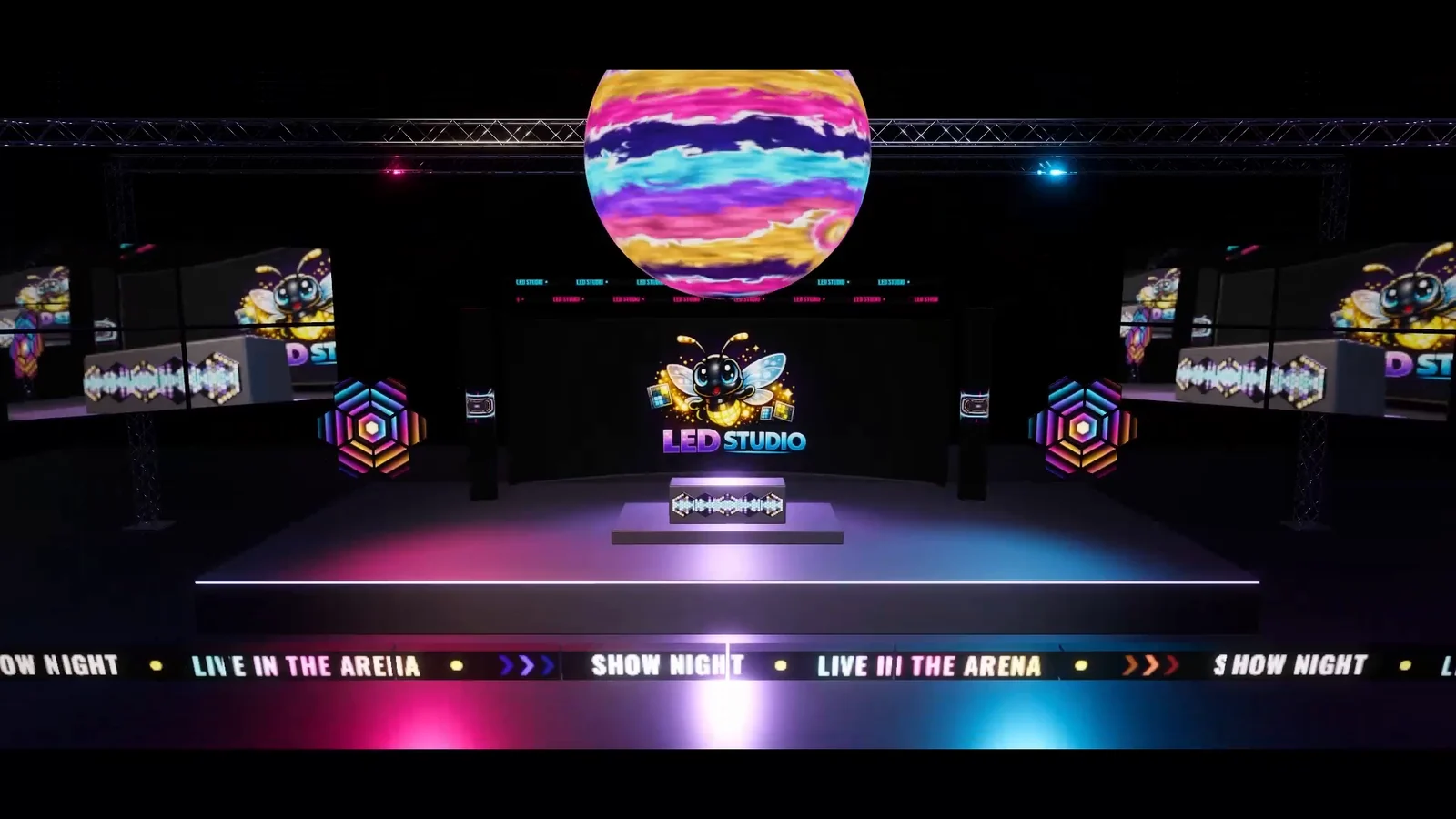 A wide arena view: a spherical display above the stage, a center screen with a logo, hexagonal panels and a perimeter ribbon.
Keep a full venue fast
A venue holds many boards, and most of them change rarely. Set a Target Update Rate on slow signs instead of composing every frame, use On Change, Fixed Rate or Manual source timing for static text and logos, and keep Every Frame for video and camera feeds. A shared LedQualityProfile applies the same update budget, reduction and bloom settings to many boards, and Close-Up Mode can stay off for boards the camera never approaches. MarkSourceDirty refreshes a source with Manual timing, optionally limited to a rectangle of it.
The manual’s Multi-Panel Boards and Sync page covers board groups and sync groups, and Performance Guidance lists the settings that keep many boards cheap.
Frequently asked questions
Can I put LED boards on the screens of a stadium model I already have?
Yes. Add a LedBoardController to the screen object, set Material Index to the screen's material slot and assign an LED Board material to that slot or as Material Override. Custom meshes are kept. The emitter grid follows the mesh's first UV channel, so the screen face needs UVs that cover the full 0 to 1 range.
How do I update the score and the game clock from code?
Call SetScore on the board's LedBoardController with the home score, away score, period and clock as strings; it updates every Score source on that board. A Timer source counts down on its own once started and is controlled with SetTime, StartCounting and StopCounting.
Is there a seven-segment scoreboard component?
No separate component is needed. Scoreboard digits are text drawn on the emitter grid, so a segment-style font gives the look. The examples include DSEG7 Classic and DSEG14 Classic as TextMesh Pro font assets.
Can several perimeter boards change sponsors at the same moment?
Yes. Give their boards or playlists the same sync group ID so they read from one clock, or put the panels in a LedBoardGroup so one shared canvas runs across all of them.
LED screens, walls and signs that look like real hardware.
Keep reading
 Article
How stadium LED systems work, and how to build them for a game
A stadium is a system of LED displays with different jobs: center-hung videoboards, scoreboards, ribbon and fascia boards, perimeter and end-zone boards, concourse signs. What each one shows, typical pitches, and how to build each with LED Studio. Use case
Video and live camera feeds on LED screens in Unity
A Video Player writing into a render texture on a quad gives a flat TV. LED Studio takes the same video, camera or UI output as a source, reduces it to an emitter grid, layers it with graphics, sequences it in playlists and keeps screens in step. Use case