Video walls and multi-panel LED groups in Unity
Build a video wall from separate LED panels in Unity: one canvas sliced across the panels, real gaps, honeycomb layouts, moving panels and playback in sync.
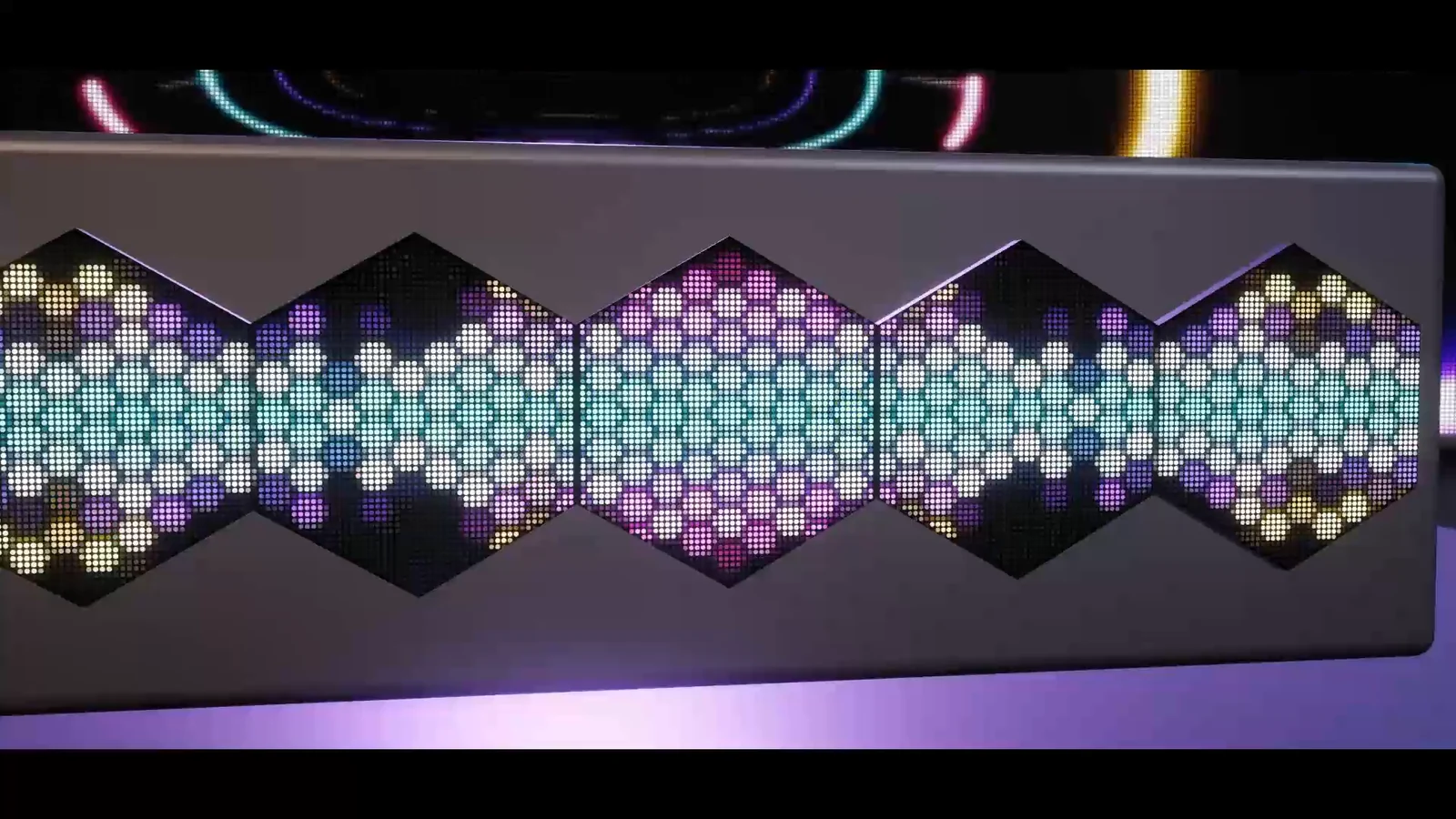
A video wall built from separate screens has to act like one display: the picture must cross the seams without jumps, the gaps must match the hardware and every panel must play in step. By hand, that means cutting textures per panel and keeping several video players aligned. In LED Studio, a LedBoardGroup composes one shared canvas and slices it across its panels, so every panel shows its part of the same frame and you feed the whole wall like a single board.
Start from a group preset
The Board Wizard creates the group for you. Choose Video Wall for a 2 x 2 grid of panels, Ribbon Group for three panels side by side or Hex Panel Wall for seven hexagonal boards in a honeycomb, then click Create Board Group. These presets have Panel Gap controls, and the wizard previews the complete shared canvas before you create it. Every panel stays a full board with its own material, emitter presentation and defects, so one panel can look dimmer or broken without touching the rest.
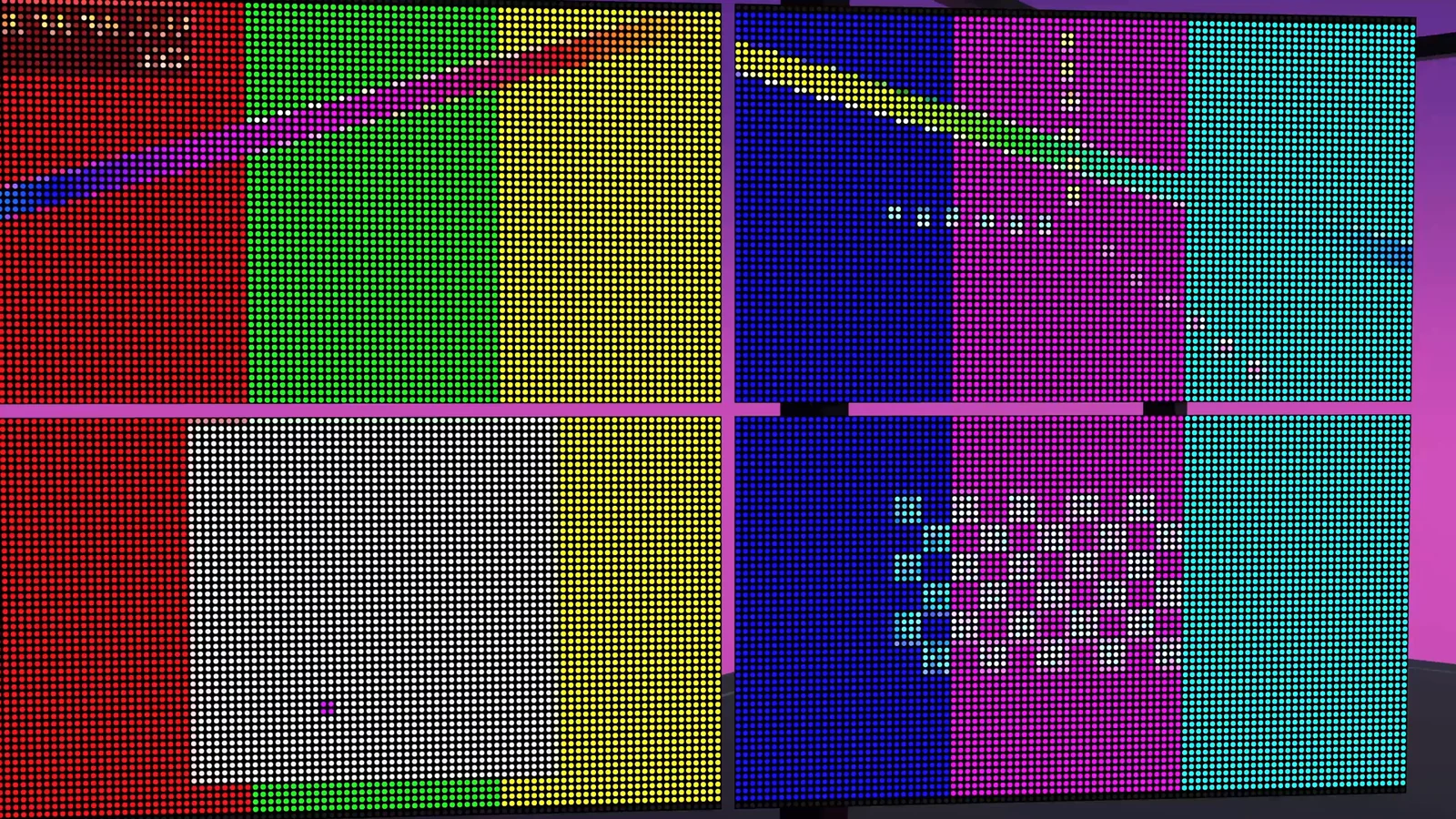 A four-panel video wall from the June 2026 trailer showing color bars across its seams.
One canvas, five layouts
The group renders a master texture at the combined resolution of its panels and hands each child its slice. Horizontal and Vertical line the panels up, Grid uses rows and columns, Radial slices horizontally for segments placed around a circle, and Spatial slices by each panel’s real position and size in the group’s plane. Content sources on the group draw onto that canvas, and an optional Layout Asset places them by Source ID.
That also answers the common question of syncing video across screens. Give the group a Video Source with its VideoPlayer, and the clip is decoded once while every panel shows its part of the same frame. When separate screens around a venue should show the same clip, decode it once as well: let one VideoPlayer render into a Render Texture and give each board a Render Texture source that reads it.
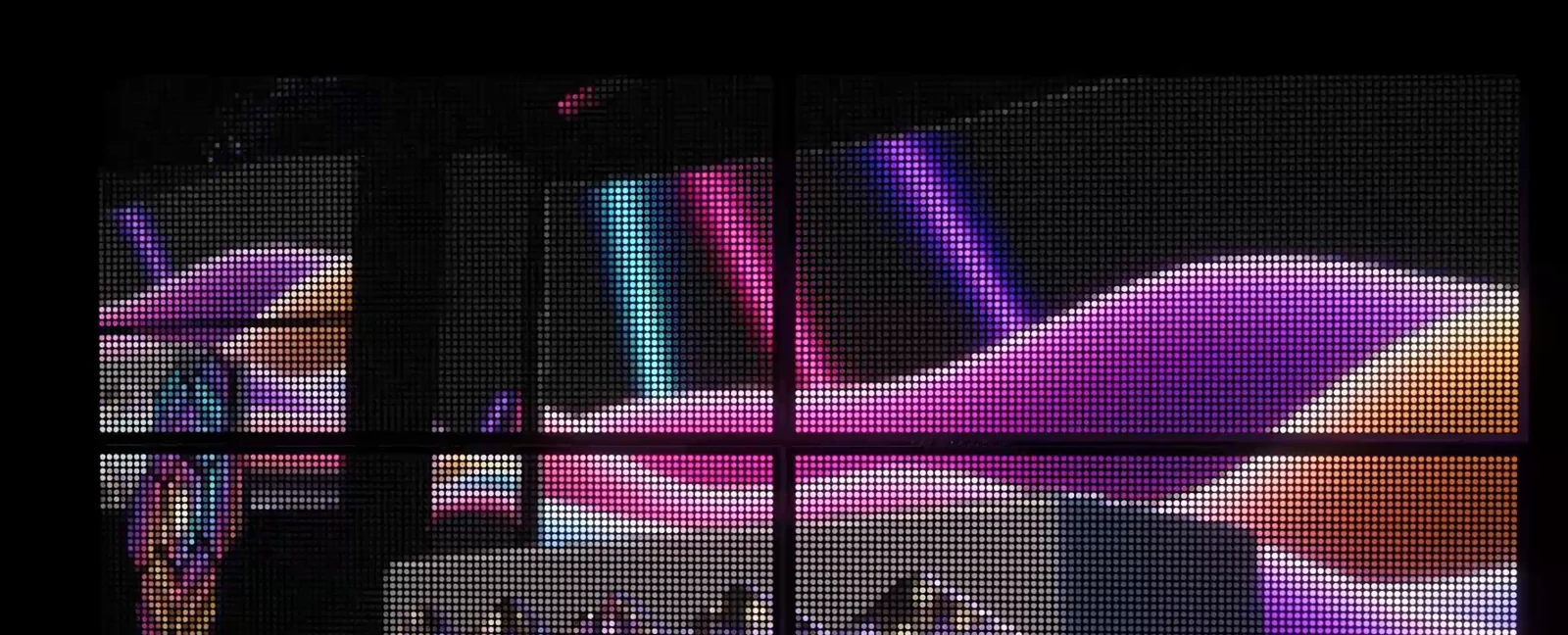 A multi-panel wall in the arena film’s camera and video segment, with the seams between panels visible.
Pixel gaps and physical spacing
Two settings sound alike and do different jobs:
- Gap Pixels renders pixels between panels into the master texture without displaying them, like content hidden behind a bezel. It applies to the regular layouts and moves no board.
- Panel Gap (mm) is the physical distance between neighboring housings, measured from the outer edge of generated front frames, so frames never overlap. Arrangement applies it: Row, Column, Grid and Honeycomb place the panels for you, while Manual keeps the positions you set. Honeycomb packs hexagonal panels edge to edge, with the Panel Gap between them.
The Spatial layout ignores Gap Pixels and uses the real gaps, so content under a gap is hidden as on a real wall. Keep spatial panels flat: a rotated or curved panel is mapped through its rectangular bounds and can show stretched content. From code, the setup takes two calls, and ArrangePanels reapplies the arrangement after you change panel sizes or frames:
// Sketch: a honeycomb wall with 15 mm between housings, mapped by panel positiongroup.SetGroupLayout(LedGroupLayout.Spatial);group.SetPanelArrangement(LedPanelArrangement.Honeycomb, 0.015f);Moving panels keep their content
Spatial groups can move, rotate and scale their panels while the content stays attached. Panel Mapping decides how:
- Automatic follows panel positions while you edit and keeps each panel’s slice in Play Mode and animation preview, so animated panels carry their content with them.
- Follow Panels always shows the part of the canvas under each panel’s current position, like windows sliding over a fixed image.
- Locked keeps the mapping until you click Capture Panel Positions or call
CaptureSpatialLayout()from code.
Inactive panels keep their space in the canvas, so switching one off does not shift the others.
Sync groups and group timing
Boards with the same sync group ID read from one shared clock, coordinated by LedSyncManager and LedSyncDriver in Play Mode and Edit Mode. That keeps playlist timing, animation, scrolling and blinking text and temporal defects matched across separate boards. A group’s Sync Group field is assigned to all of its panels, and playlists can carry their own sync group ID. Group Timing sets the clock mode, update phase, time scale, maximum delta time and edit-mode ticking for group-level content. Calling SetSyncClock on any board resets or scrubs its whole sync group from code, and Tools > LED Studio > LED Studio Window lists the registered sync groups and can nudge or reset their time in Play Mode.
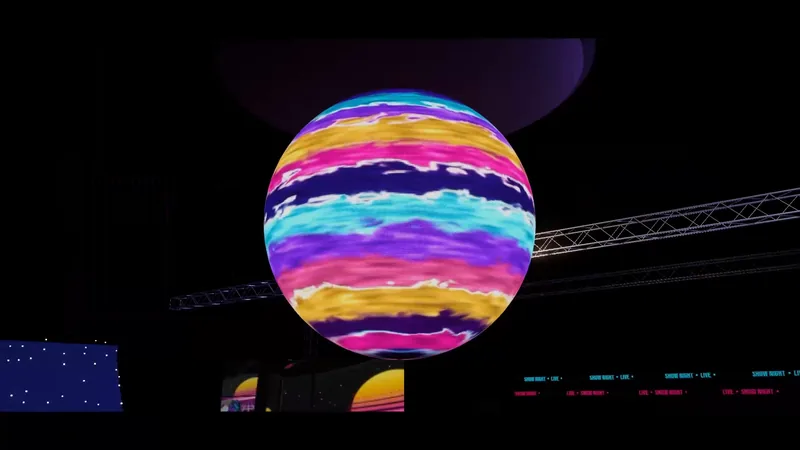
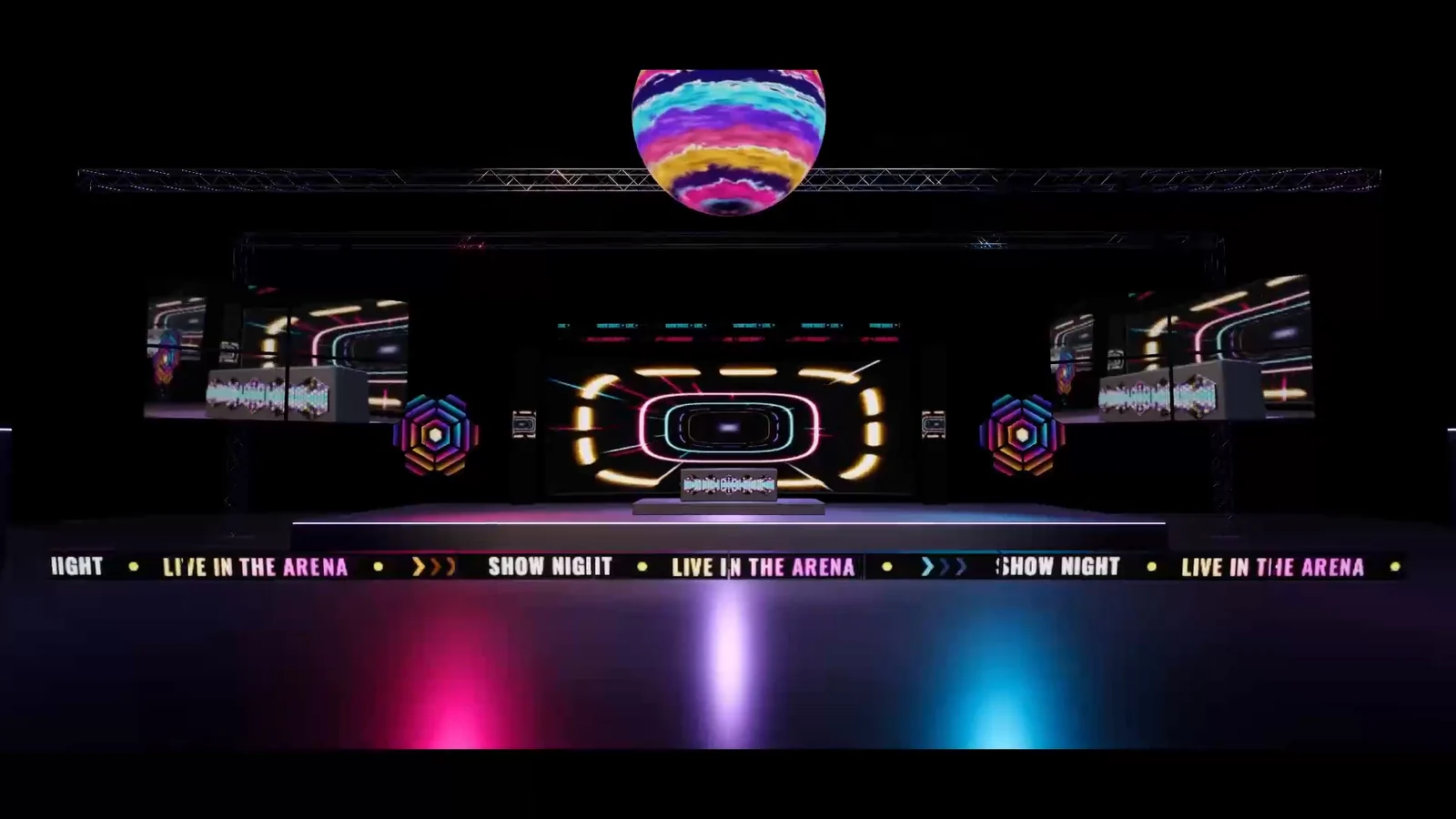 A frame from the arena film: a sphere, hexagonal panels, side screens and a perimeter ribbon in one scene.
Edit many panels at once
The Board Group inspector edits panel resolution, emitter pitch and housing for all panels together under Shared Panel Settings, and its select button picks every panel for full multi-object editing. Before adding content, check the wall with a numbered calibration grid: every seam should continue cleanly, with no swapped or mirrored segments. The Multi-Panel Boards and Sync manual page explains groups, arrangements and spatial mapping, and Troubleshooting covers boards that drift out of sync. For curved walls and spheres built as one board, see curved and spherical LED screens.
Frequently asked questions
How do I show one video across several LED panels in Unity?
Put the panels under a LedBoardGroup and give the group the video source. The group composes one shared canvas and hands each panel its slice, so the picture stays continuous across the seams and every panel shows the same frame.
How do I sync the same video on separate screens?
Decode it once: let one VideoPlayer render into a Render Texture and give each board a Render Texture source that reads it. Sync groups keep LED Studio's own clocks aligned for playlists, scrolling and blinking text and temporal defects.
What is the difference between Gap Pixels and Panel Gap?
Gap Pixels hides a number of content pixels between panels in the regular layouts, like content lost behind a bezel, and does not move the boards. Panel Gap (mm) is the physical distance between panel housings that the automatic arrangements apply.
Can panels move while their content stays attached?
Yes. In a Spatial group with Panel Mapping on Automatic, panels can move, rotate and scale in Play Mode and animation preview while keeping their part of the canvas. Follow Panels turns them into windows onto fixed content instead.
LED screens, walls and signs that look like real hardware.
Keep reading
 Use case
Curved, cylinder and spherical LED screens in Unity
Mapping video onto a curved mesh by hand means UV distortion and seams. LED Studio generates curved, corner, cylinder, pipe-wrap and spherical boards around one rectangular emitter grid, plus honeycomb walls, rear bodies and front frames. Use case
Stadium screens, scoreboards and perimeter boards in Unity
A venue needs a center screen, a scoreboard, ribbon boards and perimeter signage that look like real LED hardware. LED Studio covers them with wizard presets, score and timer sources, sponsor playlists, synced panel groups and boards on stadium meshes.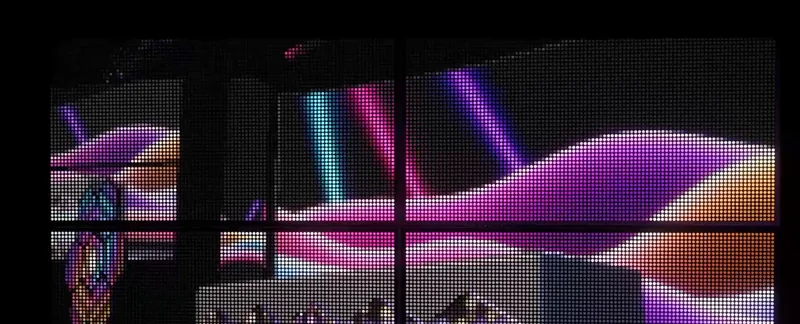 Use case