Export fake data as CSV, JSON or C# arrays
Turn generated values and series into CSV, JSON, plain text or C# array code, copy them to the clipboard or save files for fixtures, spreadsheets and Chart Guru.
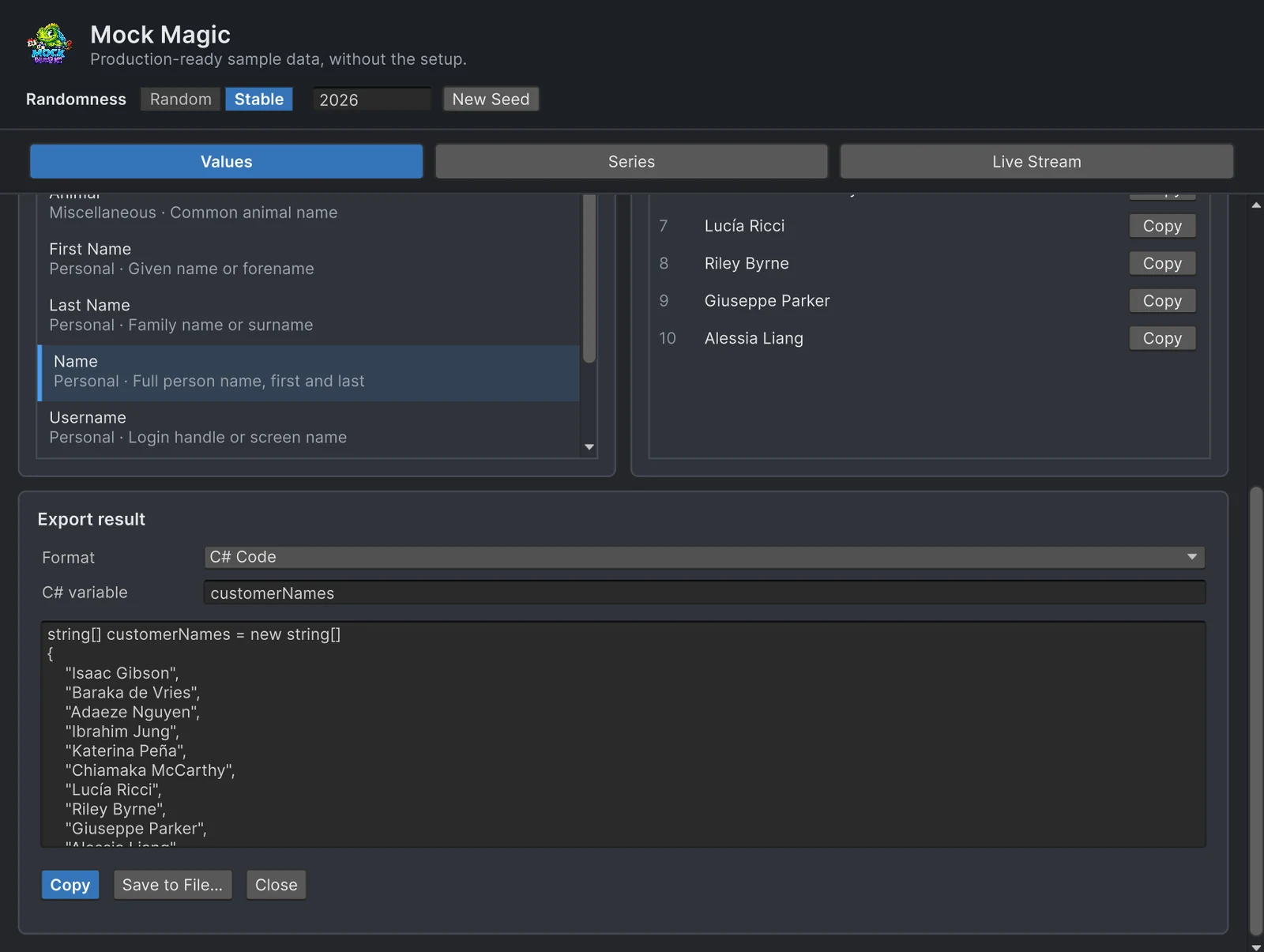
Generated data rarely stays in the window that made it. A unit test wants a fixed list of names, a designer wants the sales table in a spreadsheet, a web front end wants a JSON file before its backend exists, and a chart wants a dataset the whole team sees. Copying values out of a console log loses their structure, and retyping them defeats the point. Mock Magic writes the current result as text, CSV, JSON or C# code, from the Generator window or from your own scripts.
Export from the Generator
- Open Tools > Mock Magic > Generator and create a result in the Values or Series workspace.
- Click Export…, next to Copy All in Values or next to Generate Series in Series. The Export result panel opens below the workspace with C# Code preselected.
- Choose C# Code, CSV, JSON or Text in Format. For C# code, enter a name in C# variable. The field only appears for that format, and a name that is not a valid C# identifier is flagged and replaced by
mockDatain the output. - Check the preview, then click Copy or Save to File…. The save dialog suggests
mock-data.csv,.jsonor.txt, orMockData.csfor C# code, which it saves as a static class named after the file.
The panel belongs to the result that opened it and refreshes when you click Regenerate or Generate Series, so it can stay open while you adjust Count, Points or the value range. With Stable selected in the Randomness row, a seed repeats the same values, dates and timestamps included, because Stable mode also fixes the date reference to 1 January 2026. A regenerated fixture then produces a clean diff in version control. Random mode and closing the window restore the wall clock. Copy All in Values copies the raw values line by line without a format, and the Live Stream workspace has no export at all; its event log offers Copy Log.
What each format looks like
Value exports treat every generated value as a string. For three names, Text numbers the lines:
1. Hiroshi Patel2. Emma Rossi3. Kwame JohanssonCSV adds an Index,Value header and a zero-based index, and wraps every value in quotes, doubling any quote inside a value:
Index,Value0,"Hiroshi Patel"1,"Emma Rossi"2,"Kwame Johansson"JSON writes one array of strings on a single line, and C# Code writes a string array named after the C# variable field:
["Hiroshi Patel", "Emma Rossi", "Kwame Johansson"]string[] customerNames = new string[]{ "Hiroshi Patel", "Emma Rossi", "Kwame Johansson"};Series exports carry labels, numbers and series identity. A single series in CSV has five columns. SeriesName stays empty because a one-series result from the Generator has no name:
Label,Value,SecondaryValue,SeriesIndex,SeriesName"Jan",48.21734,0,0,"""Feb",52.90311,0,0,"""Mar",61.4072,0,0,""JSON writes the same five fields as one object per point, with "seriesName": null for that unnamed series. Text writes a tab-separated Label and Value table, and C# code writes two arrays, mockDataLabels and mockDataValues.
With Series count above 1, the formats split the data differently. CSV stays one long table: a single header, then the rows of every series one after another, told apart by SeriesIndex and by SeriesName, which the Generator fills with Series 1, Series 2 and so on. JSON nests the points under each series name and keeps only label and value:
[ { "name": "Series 1", "data": [ {"label": "Jan", "value": 48.21734}, {"label": "Feb", "value": 52.90311} ] }, { "name": "Series 2", "data": [ {"label": "Jan", "value": 33.5081}, {"label": "Feb", "value": 29.77604} ] }]C# code writes one label array, taken from the first series, and one float array per series, named mockDataSeries1Values, mockDataSeries2Values and so on. Text prints one table per series under a heading such as === Series 1 ===.
How numbers are written
- CSV and JSON write series values with the invariant culture: always a period as the decimal separator, and no rounding to a fixed number of decimals.
- C# code is invariant too, but rounds to two decimals and adds the
fsuffix, as in48.22f. - Text rounds series values to two decimals, also with a period, so a German system writes
48.22like any other. - Value exports keep the strings the generator produced, and those look the same on every machine: Float, Currency and Percentage with two decimals and a period, Latitude and Longitude with six, and Price as a dollar amount such as
$49.99.
Value exports stay strings in every format, so a JSON consumer receives "48.22" rather than 48.22. Use a series, or the typed objects shown below, when the numbers matter.
Export from code
MockExport offers the same formats in the runtime API. Export(data, format, variableName) picks the format at run time, while ToText, ToCsv, ToJson and ToCSharpCode call one directly, each with overloads for string[], MockDataPoint[] and MockDataPoint[][]. ToCsv takes includeHeader (true by default), and the series overloads of ToJson take prettyPrint (also true). This component writes a repeatable set of test files when you choose Write Test Data from its context menu in the Inspector:
using System.IO;using MockMagic;using UnityEngine;
public class FixtureWriter : MonoBehaviour{    [ContextMenu("Write Test Data")]    void WriteTestData()    {        Mock.Seed(2026); // the same files on every run        string[] customers = Mock.Names(25);        MockDataPoint[][] sales = MockSeries.GenerateMultiSeries(            SeriesPattern.Seasonal, seriesCount: 3, pointCount: 12, min: 20f, max: 120f,            labelPreset: LabelPreset.MonthsShort, seriesNames: new[] { "North", "South", "West" });        Mock.ResetSeed();
        string folder = Path.Combine(Application.dataPath, "..", "TestData"); // outside Assets        Directory.CreateDirectory(folder);        File.WriteAllText(Path.Combine(folder, "customers.json"), MockExport.ToJson(customers));        File.WriteAllText(Path.Combine(folder, "sales.csv"), MockExport.ToCsv(sales));        File.WriteAllText(Path.Combine(folder, "sales.json"), MockExport.ToJson(sales));    }}
With named series, the C# arrays take their names from the series, so ToCSharpCode(sales, "sales") declares salesNorthValues, salesSouthValues and salesWestValues. Smaller jobs need one line each:
string code = MockExport.ToCSharpCode(Mock.Emails(50), "testEmails");string file = MockExport.ToCSharpClass(code, "TestEmails"); // compiles as TestEmails.csMockExport.CopyToClipboard(Mock.Emails(50), ExportFormat.Csv);string rows = MockExport.ToCsv(MockSeries.Sine(24), includeHeader: false);CopyToClipboard uses GUIUtility.systemCopyBuffer, and the overload without a format puts any string on the clipboard. C# output on its own is plain declarations for pasting into a class or method. ToCSharpClass(declarations, className) wraps them in a public static class with public static readonly fields, the same file that Save to File… writes, so it compiles on its own.
Records with several fields
The Export panel writes one column of values or a series. For records such as customers with a name, an e-mail address and a city, build typed objects with MockOf<T> and serialize them with Unity’s JsonUtility or the JSON library you already use. JsonUtility needs a wrapper class around arrays:
using System;using MockMagic;using UnityEngine;
[Serializable]public class Customer{    public int id;    public string name;    public string email;    public string city;}
[Serializable]public class CustomerList{    public Customer[] customers;}
public static class CustomerFixtures{    public static string ToJson(int count)    {        Customer[] customers = MockOf<Customer>.New(() => new Customer())            .Set((c, i) => c.id = i + 1)            .Set(c =>            {                MockPerson person = MockPerson.New(); // name and e-mail belong together                c.name = person.FullName;                c.email = person.Email;                c.city = person.City;            })            .Generate(count);        return JsonUtility.ToJson(new CustomerList { customers = customers }, true);    }}
MockPerson derives the e-mail address from the name it drew, which two separate Mock.Name() and Mock.Email() calls do not.
Where each format fits
- C# arrays as test fixtures. Save the export with Save to File… into your test assembly’s folder, or paste the array into an existing class. The data is reviewed like code, never changes between runs and needs no generator while the test runs. The article on data-driven tests with the Unity Test Framework builds on this.
- CSV for spreadsheets. Excel, Google Sheets and LibreOffice open the files directly. A spreadsheet set to a locale with decimal commas may need its import dialog to read the period-separated numbers.
- JSON for mock servers and web tools. A JSON file is enough for a local mock server or a web front end that has no backend yet. One series exports as a flat list of objects, several series as one object per series.
- CSV and JSON for Chart Guru. Chart Guru’s CSV and JSON data sources read these files, which helps when a whole team should look at the same fixed dataset. For several series the long CSV fits best: bind X to
Label, Y toValueand Series toSeriesNameon the Marks tab rather than relying on the automatic layout, since the file also has the numericSecondaryValueandSeriesIndexcolumns.
For charts that only need generated data, Chart Guru’s Mock Chart Data Source skips the file entirely, as Using Mock Magic with Chart Guru shows. The manual’s Exporting Data page summarizes the panel, and chart and dashboard test data covers shaping a series before you export it.
Frequently asked questions
How do I export Unity test data to CSV?
Generate values or a series in Tools > Mock Magic > Generator, click Export..., set Format to CSV and click Copy or Save to File... to keep the result. In code, MockExport.ToCsv returns the same text for a string array, one series or several series.
Which decimal separator do the CSV and JSON exports use?
A period, on every machine and in every format. CSV, JSON, Text and C# code write series values with the invariant culture, and generated values such as Float, Currency or Percentage are formatted the same way everywhere.
Can I save the C# export as a .cs file in my project?
Yes. Save to File... with C# Code writes the declarations into a public static class named after the file, so the saved .cs file compiles on its own. In scripts, MockExport.ToCSharpClass(declarations, className) builds the same class.
Does MockExport work at runtime?
Yes. MockExport belongs to the runtime API, which has no Editor dependency. It returns strings, so you decide where they are written, and CopyToClipboard uses Unity's GUIUtility.systemCopyBuffer.
Realistic fake data for Unity, from one value to a live stream.
Keep reading
 Use case
Test charts and dashboards with patterned data
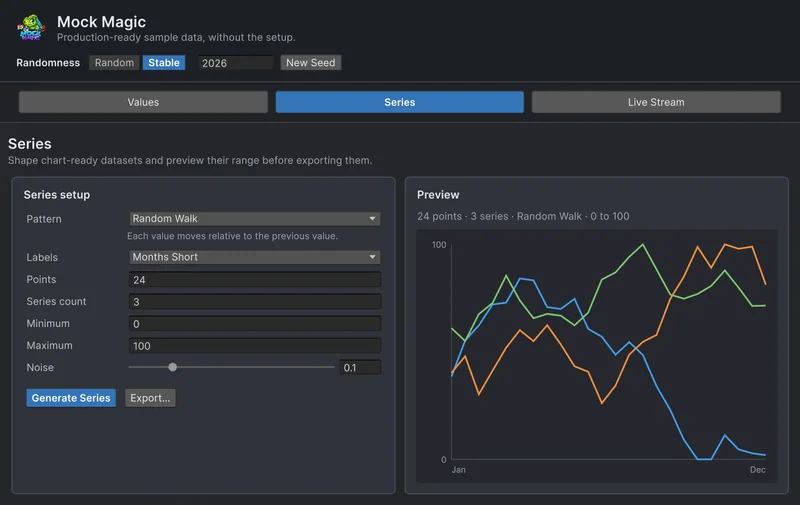
A chart that has only seen tidy numbers is untested. Generate labeled series in 15 shapes, with noise, negative ranges and up to 10 series at once, preview them in the Editor, then export them or feed them to a chart. Use case
Reproducible fake data for Unity tests
Random test data only helps when a failure can be repeated. Seed Mock Magic, pin the date it counts from, keep IDs predictable, and return to fresh random output when the test ends.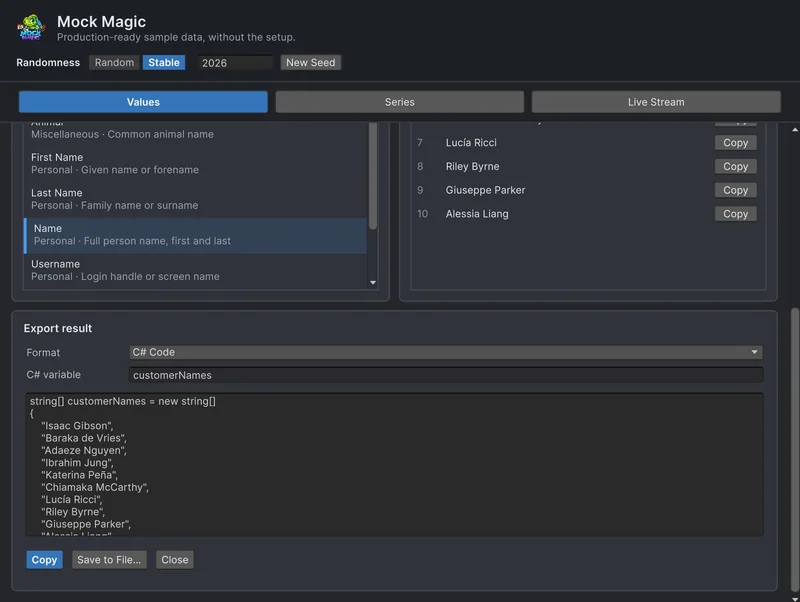 Article