Compositions and Playlists
Components-Only Mode
If a board has no direct Source Asset, no LED Composition, and no active playlist entry, LED Studio composes the discovered data source components directly. Component priority, opacity, fit mode, and zone determine the result. This is the fastest way to create a simple sign or a single-source board.
Composition Mode
When a LedCompositionAsset is assigned, its layers control composition. Each layer has a name, optional SourceId, optional live input name, optional Source Asset, normalized zone, fit mode, optional reduction override, priority, and opacity. Lower priority draws first. Higher priority draws on top. Live input layers resolve through the board input bindings, so the same composition can be reused across boards with different scene sources.
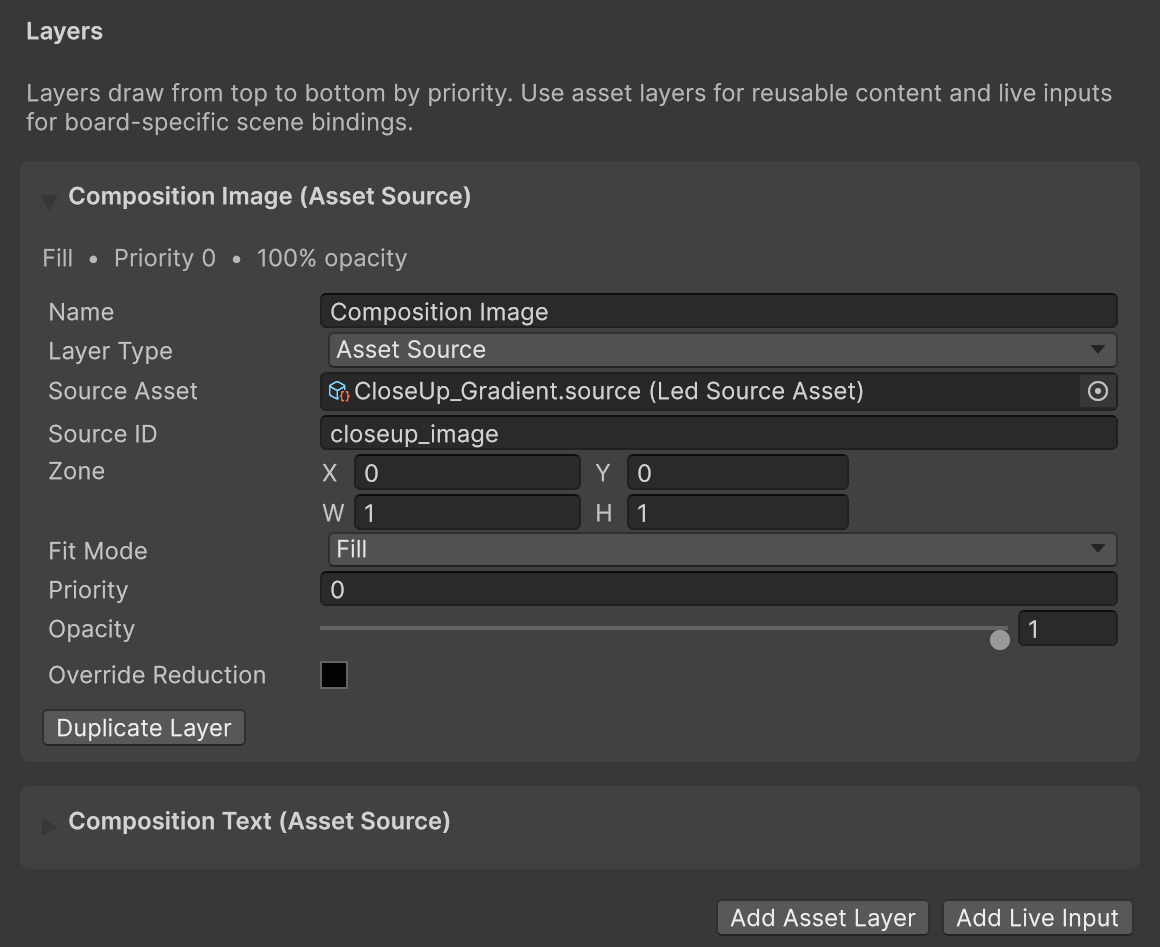

Source binding - Component-only boards use Source ID for runtime updates. LED Composition asset layers can carry their own Source Asset, or they can declare a live Input Name that each board maps to a scene source or texture. Source ID is board-local; Input Name is reusable per composition. |
Playlists
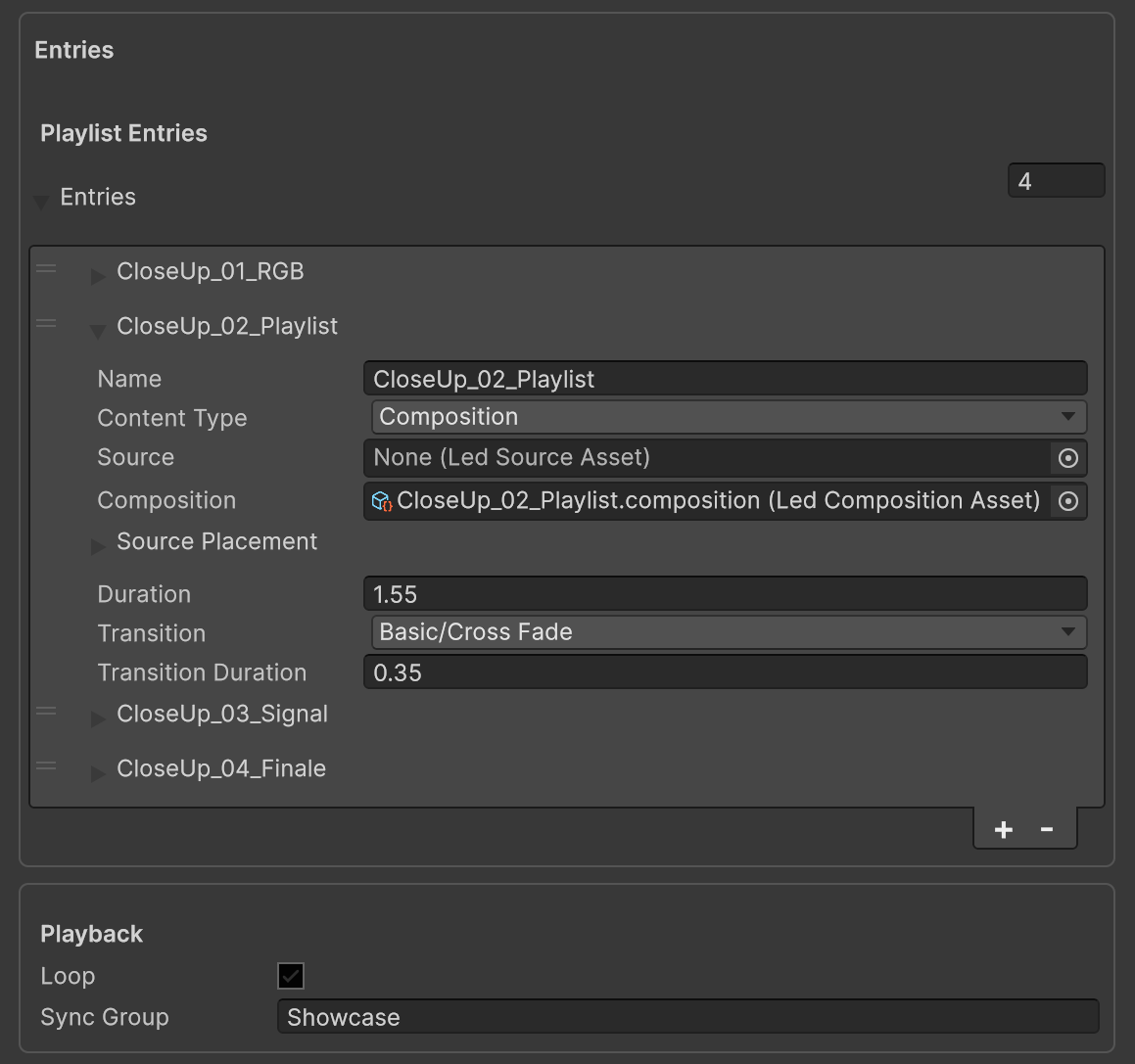
LedPlaylistAsset schedules content over time. Each entry can display either a direct LedSourceAsset with placement settings or a reusable LedCompositionAsset. Entries include duration, transition type, and transition duration. Playlists can loop and can carry a sync group ID so separate boards stay phase-locked.
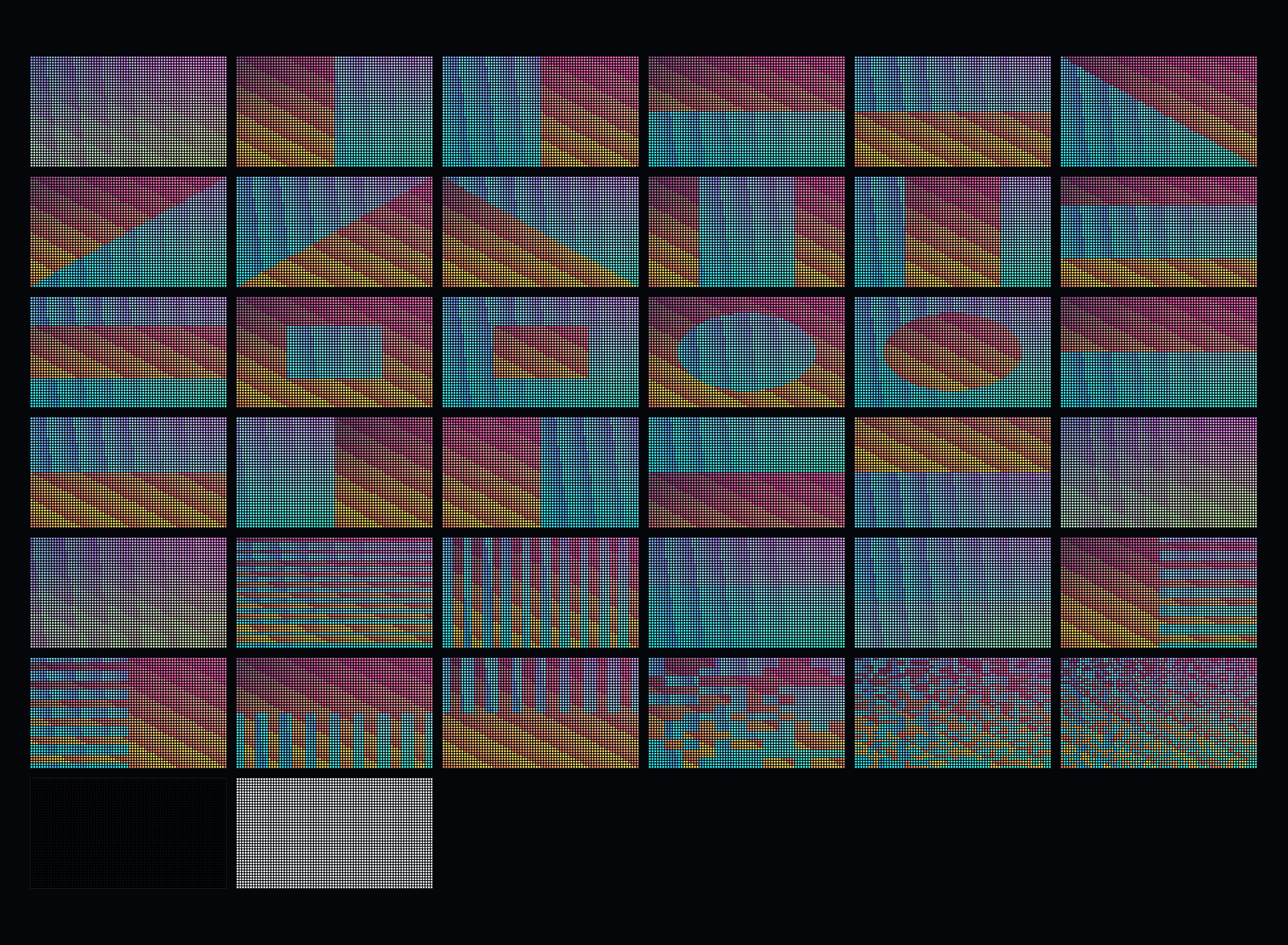
Transition | Behavior |
Cut / Cross Fade | Switch immediately or blend between previous and next playlist output. |
Directional and diagonal wipes | Reveal the next entry from horizontal, vertical, or diagonal directions. |
Splits, box, iris, and radial reveals | Open or close from the center, edges, box bounds, circular iris, or radial clock pattern. |
Pushes and zooms | Move or scale the outgoing/incoming entry for larger board motion. |
Blinds, scanlines, stripes, checkerboard, pixel/noise dissolve | Use stadium and coarse-pixel reveal patterns suited to LED boards. |
Dip to black / flash white | Use quick event-style transitions for impact or reset beats. |
Content Priority
LedBoardController builds the runtime display composition in this order: active playlist entry, board Source Asset, board LED Composition, then discovered data source components sorted by priority. This lets playlists provide timed base content while direct board source/composition fields and live components add persistent overlays. Playlist transitions blend only playlist-entry layers; persistent overlays are drawn above the transition result.