Reporting
Overview
This module will scan the complete project and try to identify packages that were being used. It also supports exporting your data and listing used licenses.
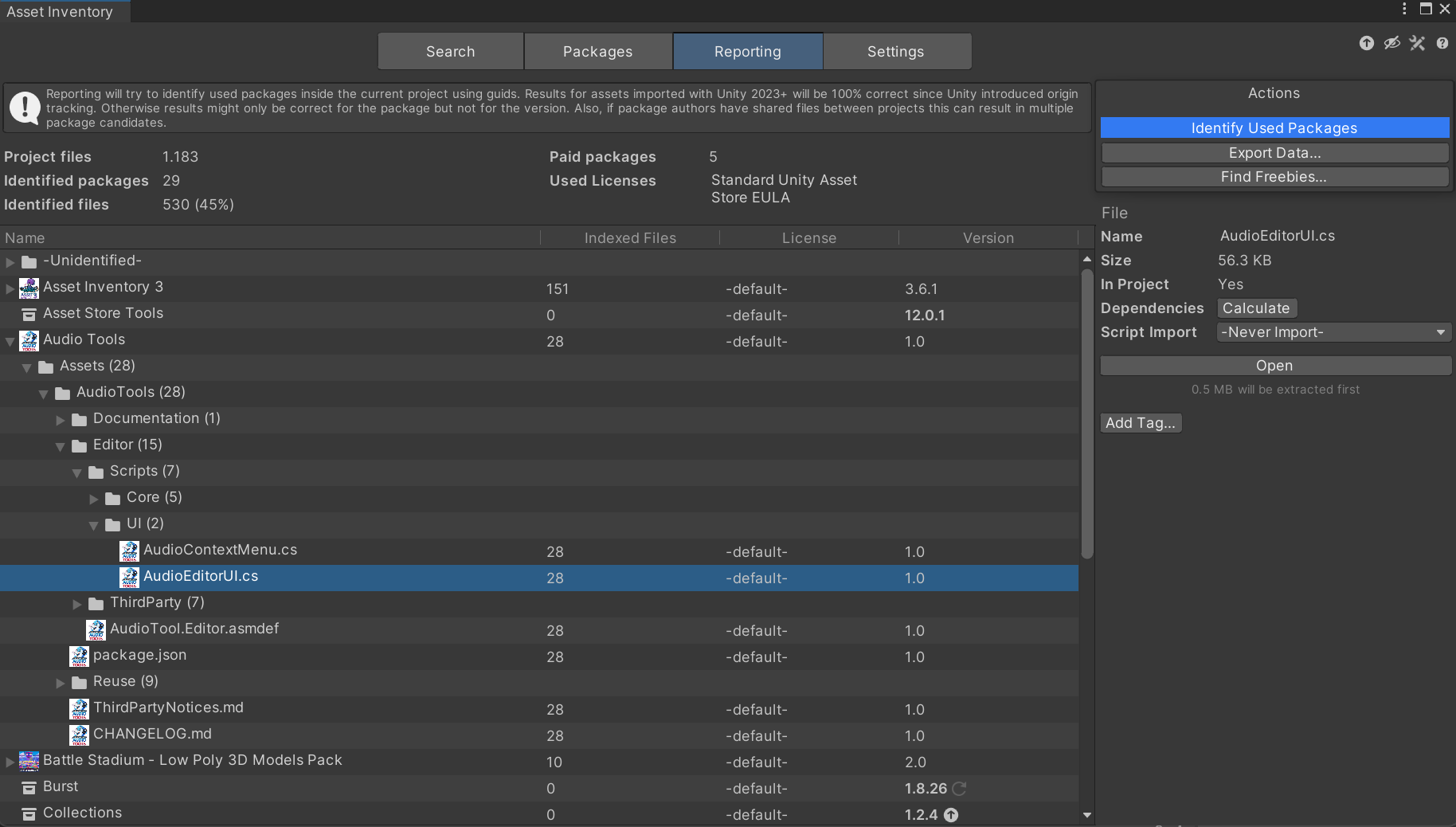
Packages that could be identified with 100% confidence, where also the version is guaranteed to be correct, will be shown with a bold version column. All registry packages automatically fall into this category. From Unity 2023+ also local assets are typically identified correctly if imported through Unity 2023+, since it will store the asset origin in the meta data files allowing to pinpoint the exact version correctly.
When selecting an asset in the Unity Project View, the reporting tab will try to identify the associated package in the lower right info box.
Asset Export
In case you want to perform your own analysis or create reports it is possible to export the database contents into various formats. Exporting packages can be done one-by-one or in bulk. Supported options are:
The catalog is not a dead end or proprietary silo. Use ready-made CSV, static HTML, package-content, license, override, and Markdown exports, or adapt the template system when a team, customer portal, spreadsheet, or internal process needs a different format.
- CSV: for easy processing in Excel and other compatible software
- Template-Based: complex export formats like HTML webpages or any custom format utilizing an easy but powerful scripting language
- Package Contents: will extract packages and copy their files to another directory
- Licenses: will list all packages with a non-default license in MD format
- Overrides: JSON files which can be used to override package-specific metadata in team scenarios (e.g. to enforce common tags & categories)
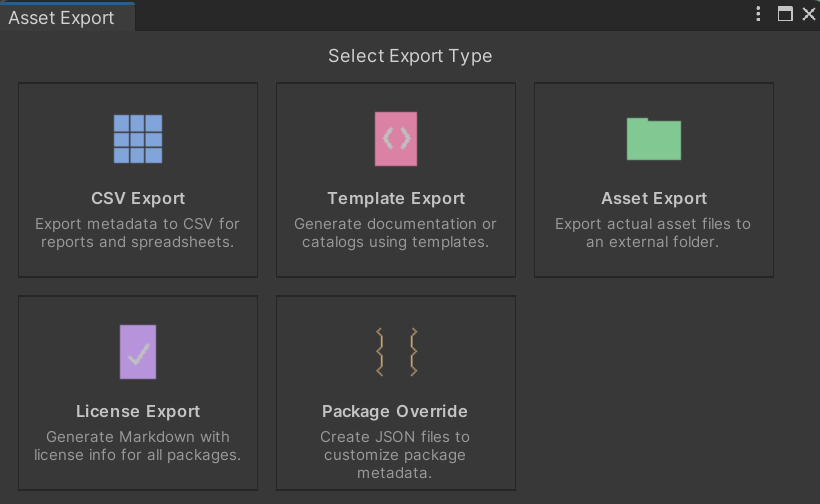
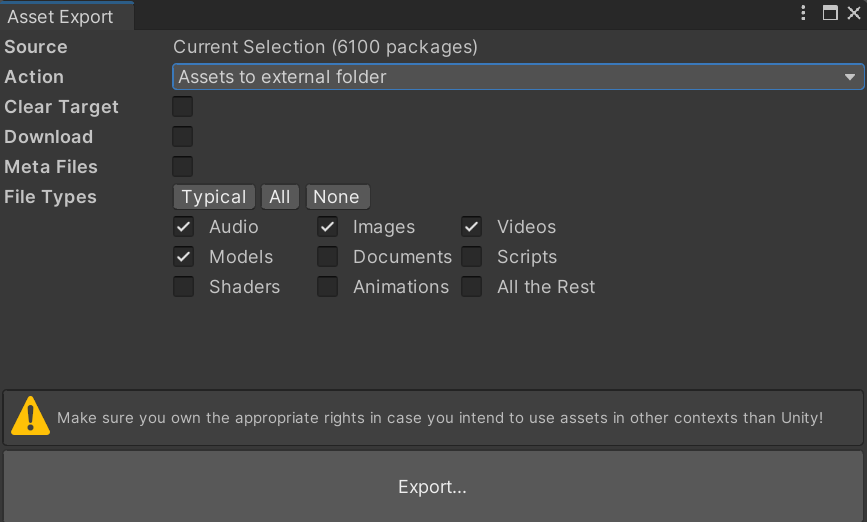
Exporting files from a package will allow you to reuse these easily in other contexts.
Override Json files are a way of providing additional information for packages during indexing. This is helpful if e.g. a whole team is indexing and you want to ensure the same category or certain tags are set the same everywhere. To have a better starting point these files can be created with the existing data so that yo-u only need to adjust them instead of creating them from scratch.
Licenses
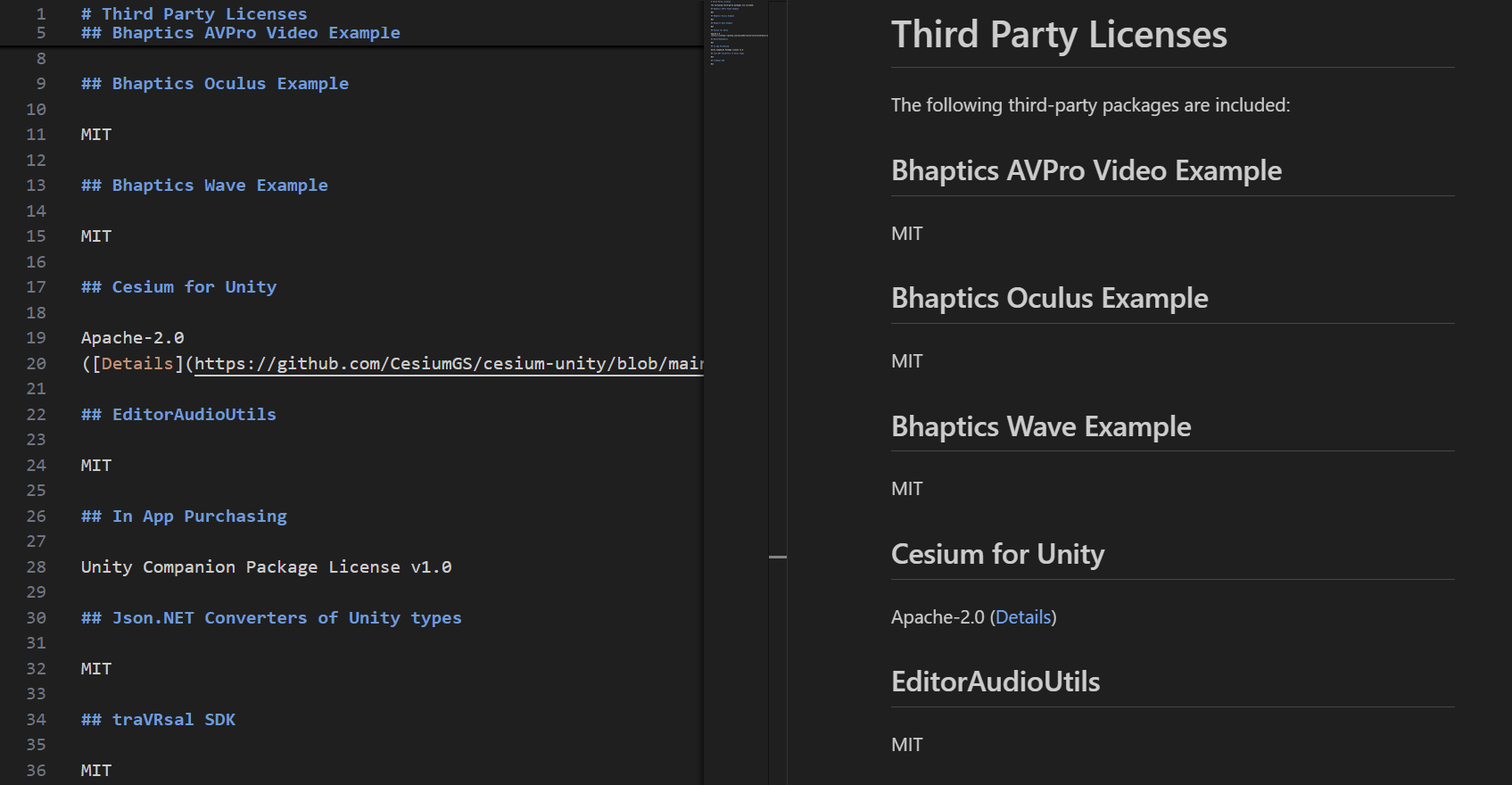
It can be very useful for compliance to list all third party licenses involved in a project. The license export will create an MD containing all packages with a non-default license.
The most powerful export mechanism is the template based approach. It processes a whole set of input files, utilizes Scriban, a template scripting language, to embed data and export the result to a custom directory. Some powerful templates are already included and custom ones can be added easily.
AI-generated content may be incorrect.“ src=“/tools/assetinventory/docs/media/a82dcf791dd29fed.png” loading=“lazy” decoding=“async”>
Below is an example template descriptor for the package-only HTML export based on the full HTML export template, extending it but deleting files and moving others around.
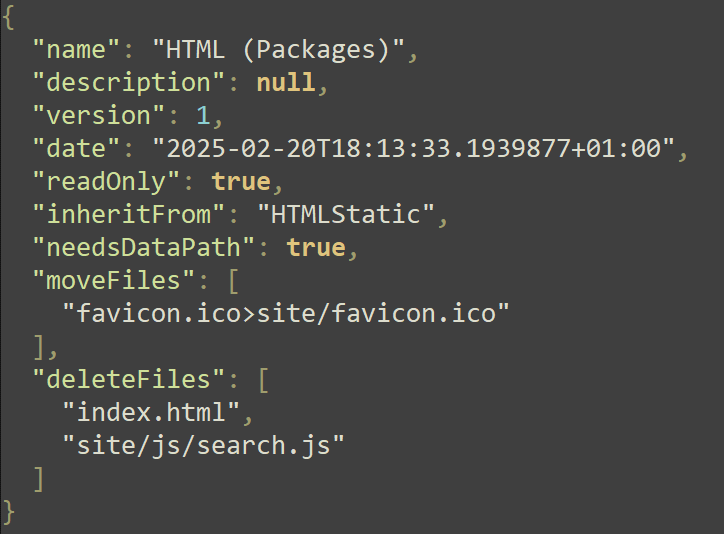
Available properties: name, description, version, date, readOnly, isSample, fixedTargetFolder, entryPath, needsDataPath, needsImagePath, packageFields, fileFields, inheritFrom, moveFiles, deleteFiles
AI-generated content may be incorrect.“ src=“/tools/assetinventory/docs/media/33def139e8108171.png” loading=“lazy” decoding=“async”>
In Advanced mode, you can create or extend templates. Extending a template means that all files of the original template will be materialized upon export plus the files you put into the new template and the changes expressed in the descriptor.
AI-generated content may be incorrect.“ src=“/tools/assetinventory/docs/media/659f94d0acc90feb.png” loading=“lazy” decoding=“async”>
Once done developing, press Publish to package the folder into a zip and copy it into the Templates directory.
It is strongly recommended to use a dedicated external folder though for storing custom templates since the tool is usually updated by removing the full installation, which would then also remove the custom templates. This can be specified under Settings/Locations 🡪 Custom HTML Templates. Once set, all new and modified templates will automatically be stored there.
Template Language
Files of type .html, .js, .csv, .txt and .md will be parsed by the template engine and any placeholders will be replaced. The engine used is Scriban. It is a simple but powerful language supporting many programming constructs, variables, include files and more. Below is an example how to iterate over all packages.
When purchasing Asset Store packages, authors sometimes grant reduced or even free access to other packages of them. Also, some authors sell bundles. When purchasing a bundle, a linked list of other packages becomes available for free. These packages are typically listed in the description.
The Asset Store does not show these free packs though easily and one has to actually go to every linked package in order to claim them.
This can lead to the common situation, that many packages remain unclaimed although they are already owned. When not claimed, the tool will not index them to make the contents available for use.
Using the Freebie scanner action will check all your purchased packages, if they contain any links to other assets in the description and will show these as potential candidates that you can claim.

Since the Asset Store does not provide an API to detect this automatically, you will need to check the results manually on the Asset Store website but can easily open the identified candidates from the log file or, if using the force mode, all will be opened automatically as tabs. Keep in mind, that only a fully loaded tab will show the correct result as the Asset Store changes the price only right at the end of the loading process.