Content Sources
A source is any object that can provide content for the LED grid. Scene source components are discovered under the board, Source Assets provide reusable asset-backed content, and LED Composition layers can reference either Source Assets or named live input slots. Every runtime-updated source should have a readable, stable Source ID when it needs to be addressed by gameplay code. Source ID is the board-local runtime address; Input Name is the reusable composition slot that each board maps to a scene source or texture.
Source | Use it for | Notes |
|---|---|---|
LedTextDataSource | Short messages, sponsor text, labels, ticker text | Uses shared LedTextSettings, TMP font assets, Auto/Smooth/Crisp rasterization, pixel-perfect fit, scrolling, seamless wrap, and blinking. |
LedImageDataSource | Static logos, cards, test patterns | Texture can be replaced at runtime by SourceId. |
LedVideoDataSource | Video playback | Requires a scene VideoPlayer. |
LedRenderTextureDataSource | Camera feeds, generated content, external systems | Useful for mini cameras or custom render pipelines. |
LedCanvasDataSource | uGUI Canvas content | Renders a Canvas through a Camera. |
LedUIToolkitDataSource | UI Toolkit interfaces | Renders UI Toolkit content through a UIDocument/PanelSettings-backed render texture. |
LedTimerDataSource | Countdowns or clocks | Can be started, stopped, and assigned time. |
LedScoreDataSource | Sports scoreboards | Receives structured home, away, period, and clock values. |
Text Rendering and Fonts
Text, timer, and score sources share LedTextSettings: Text Size, fixed or auto-fit sizing, line and character spacing, alignment, word wrap, optional Pixel Perfect Fit, and Auto/Smooth/Crisp rasterization. Font mode renders through TextMesh Pro and should be used for arbitrary fonts, accented Latin, multiline text, CJK-rich content, and production signage. Bitmap mode uses LED Studio's internal 5 x 7 renderer for simple crisp Western signage.
Assign bundled * LED TMP assets from Examples/Shared/Fonts to the TMP font field rather than assigning the raw .ttf source files. For Chinese, Japanese, and Korean text, assign a TMP_FontAsset with the required glyphs directly on the Text, Timer, Score, or Source Asset font field, and configure TMP fallbacks on that font asset where needed.
TextMesh Pro Rich Text
When a Text Source uses Font mode, enter TextMesh Pro tags directly in its Text field to format individual words or characters. Rich text is enabled automatically. Use a closing tag to limit a change to part of the text, and nest tags when a label needs more than one style.
Tag Family | Tags | Use |
|---|---|---|
Character styling | <b>, <i>, <u>, <s>, <strikethrough>, <sub>, <sup>, <size> | Emphasize text, add underline or strike-through, change size, or position subscript and superscript characters. |
Color and highlighting | <color>, <alpha>, <mark>, <gradient> | Apply local color, transparency, highlighting, or a configured gradient preset. |
Letter case and literal text | <lowercase>, <uppercase>, <allcaps>, <smallcaps>, <noparse> | Change letter case or show tag syntax as ordinary text. |
Spacing and placement | <cspace>, <mspace>, <space>, <pos>, <voffset>, <rotate> | Adjust character spacing, horizontal or vertical placement, and character rotation. |
Paragraph layout | <align>, <br>, <indent>, <line-indent>, <line-height>, <margin>, <margin-left>, <margin-right>, <width>, <nobr> | Control alignment, line breaks, indentation, line spacing, margins, text width, and words that should stay together. |
Fonts, assets, and styles | <font>, <font-weight>, <sprite>, <style> | Use the corresponding TMP font, weight, sprite, or style assets configured in the project. |
For example, <color=#FFD24A><b>LIVE</b></color> 24:18 highlights a bold status label, and <size=150%>HOME</size><br>24 places a larger team name above its score. To show the markup itself, use <noparse><b>Literal tag</b></noparse>.
Tags that name a font, sprite, gradient, or style require that asset to be available to TextMesh Pro; the tag does not create the asset. Detailed syntax and asset requirements are covered by Unity's TextMesh Pro rich-text reference.
LED Studio renders TMP text into a continuous board texture. The <page> tag therefore does not paginate the display, and <link> can carry a TMP link ID without creating a clickable link on the LED board. Bitmap mode uses the internal bitmap renderer and does not interpret TMP tags. Optional Text Studio and UniText renderers use their own markup rules.
Text Motion, Wrapping, and Blinking
The optional UniText 3 integration adds multilingual shaping, bidirectional text, fallback fonts, emoji, markup, and reusable renderer profiles. UniText-powered text, timer, and score sources keep LED Studio ownership of source IDs, layout, scrolling, blinking, composition, and board placement.
The inspector shows only the settings supported by the selected text renderer, which keeps bitmap, TextMesh Pro, Text Studio, and UniText workflows focused.
Text, timer, and score sources share motion controls for horizontal or vertical scrolling, manual scroll offset, seamless wrap, minimum repeat padding, and single-repeat or evenly distributed wrapping. Use Seamless Wrap for ticker rings, ribbon boards, and vertical crawl effects where empty gaps would reveal the texture edge.
Blinking is available for text, timer, and score sources. Flash mode switches between bright and dim states, while Fade mode pulses smoothly. Blink rate, on-time, dim alpha, and phase offset make it possible to alternate labels, create warning flashes, or pulse a scoreboard clock without writing custom code.
When the optional Text Studio integration is installed, a Text Source can use a Text Studio-backed renderer while LED Studio still owns the source ID, scrolling, seamless wrap, blink settings, markup parsing toggle, and board placement.
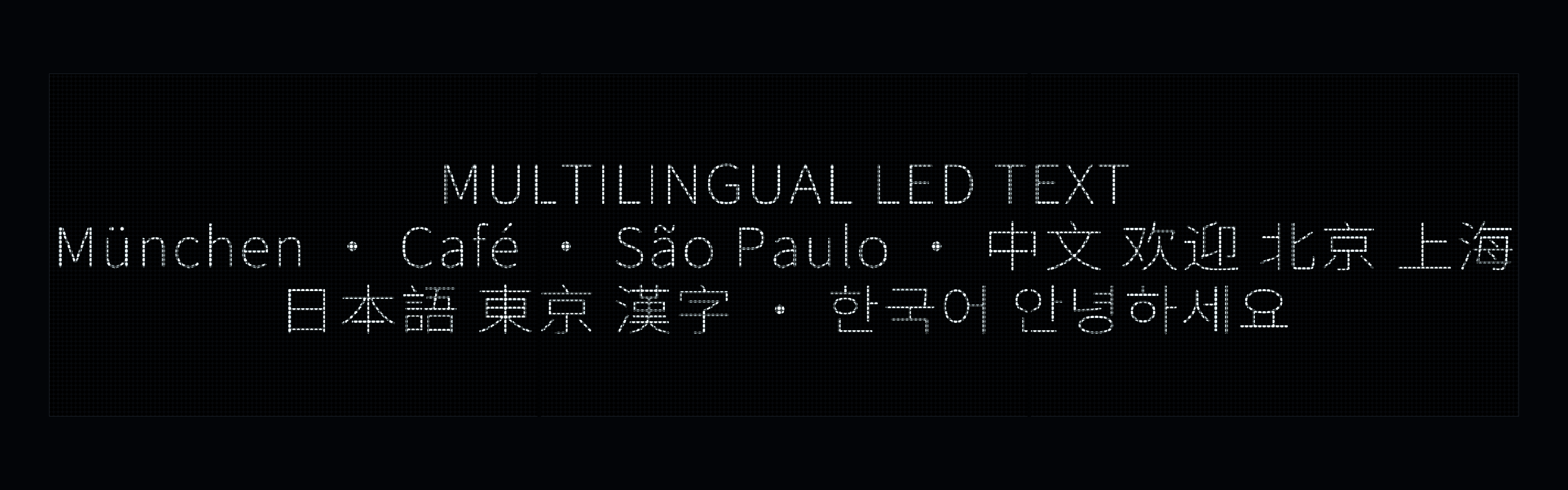
Multilingual text source with accented Latin, Chinese, Japanese, and Korean lines.
Fit Modes and Reduction
Sources are often higher resolution than the LED board. Fit mode decides how the source rectangle maps into the target zone: Stretch fills the zone, Fit preserves aspect ratio without cropping, Fill preserves aspect ratio while cropping, and None uses the source directly. Reduction mode decides how the high-resolution source is sampled into LED emitters. Text, timer, and score content normally uses Alpha Priority to preserve opaque glyphs, images can use Edge Preserving Sharpen, and video or render textures often use Box sampling.
Timing and Update Cadence
Board Timing and Group Timing control clock mode, update phase, max delta time, edit-mode ticking, and time scale for playlists, scrolling text, blinking text, sync groups, and temporal defects.
- Every Frame updates when content must animate continuously, such as video, camera, UI, or animated text.
- On Change updates when content changes and saves work for static text, images, and logos.
- Fixed Rate updates at a chosen Hz value for slower media, UI, or external feeds.
- Manual updates only when game code or an external producer marks the source dirty.