Theme Complete 3D Experiences
Themes let one art-direction choice travel through a complete 3D experience. Change a menu language, visual family, control response, gameplay-feedback treatment, or explicitly themed font without walking through every title, button, label, and popup by hand.
Project and Hierarchy Themes
Create Assets > Create > Text Studio > 3D > Setup > Theme. A Text Studio 3D Theme can provide a technical font pairing, default 3D Style, named style variations, control-label and gameplay-feedback mappings, and one Control Theme. Create Project Theme Settings for the global default with Tools > Text Studio > 3D > Project Theme, which selects or creates them. Add a Theme Scope when a room, menu, faction, level, or terminal needs a different choice. The nearest enabled scope wins; an empty scope falls through to its parent or the project theme.
Font Ownership Stays Explicit
Font Source defaults to Text Object, which keeps the active Text Studio backend authoritative. Choose Theme only when this object should deliberately inherit typography from the current 3D Theme. Font3D remains hidden matching technical data used for outlines and prepared geometry. It is not a second customer-facing typography choice.
Named Styles and Control Themes
Keep one uncomplicated Default Style, then add named variations such as Menu Title, Warning, Quest Marker, Score, or Boss Damage. A themed text object can bind to Default, one named variation, Control Label, or Gameplay Feedback. Empty mappings fall back to Default, so a simple theme remains complete.
A Control Theme coordinates Normal, Hover, Focused, Pressed, Selected, Disabled, and Error feedback. Each state may change label tint, surface tint, scale, and depth offset. Focus and selection remain distinct, which keeps keyboard navigation, a selected option, validation, and pointer feedback readable at the same time.
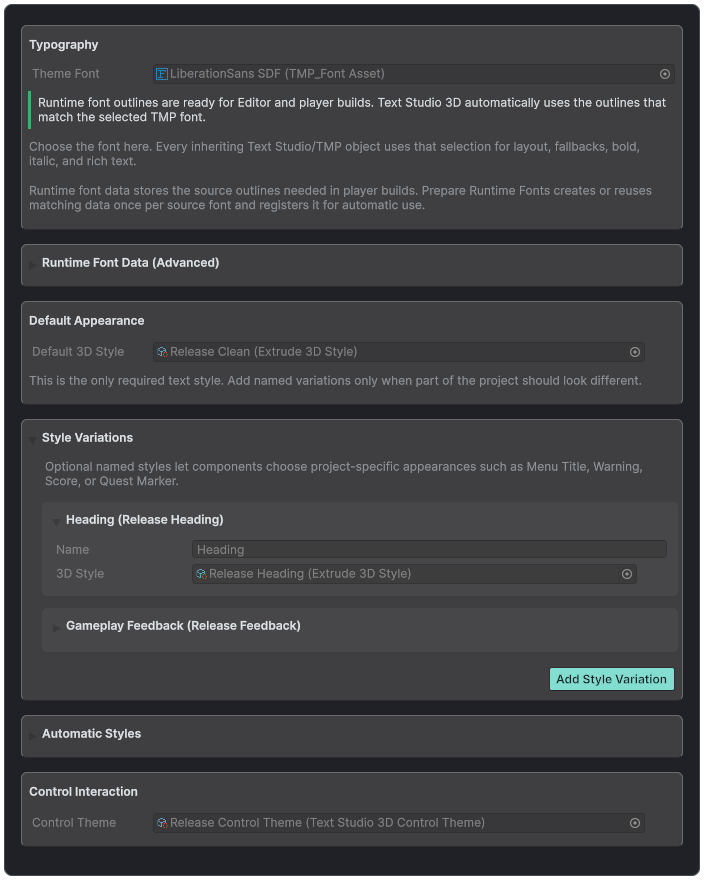
A 3D Theme coordinates runtime font data, default and named styles, automatic roles, and control interaction.
Build a Theme-switchable Spatial Menu
- Create a Control Theme and verify every interaction state against the lighting and camera used by the real scene.
- Create two 3D Theme assets with different default styles, named Menu Title and Gameplay Feedback variations, and any intentionally themed font pairing.
- Create Project Theme Settings for the global default, then add a Theme Scope around the menu so it can change independently.
- Add GameObject > Text Studio > 3D > Spatial UI > Spatial Menu. Connect its controls and navigation to real settings.
- Use Theme Action components from UnityEvents to apply a theme to the scope. Confirm that titles, control labels, selected options, and feedback update together.
- Test pointer, keyboard, controller, optional XR focus, and the Spatial Keyboard, then verify narrow, typical, and wide camera framing.