Place and Influence Text
Placement Shapes the Baseline
Linear keeps the normal TMP layout. Arc, Wave, Circle, and Grid reposition glyphs without rewriting the source. Placement extensions can add specialized choices such as the spatial forms supplied by Text Studio 3D.
Spatial Fields Shape Effect Strength
Linear, Sphere, Box, Cylinder, Torus, Target Distance, and deterministic Noise fields can be stacked. Evaluate them in Source Layout, Source Text Normalized, Placed Text, or World coordinates according to what the influence should follow. A normalized source field remains stable even when placement, animation, object transforms, or world movement change.
Keep the model clear: Placement decides where glyph baselines live. An effect decides what visual property changes. A spatial field decides where that effect is strong. A Shared Spatial Target supplies a reusable moving point for Target Distance fields.
Placement Modes
Linear preserves the backend layout. Arc bends the baseline by radius and total angle. Wave displaces the baseline through a repeatable curve. Circle wraps text around a full or partial ring. Arc and Circle use Auto Fit Radius by default, which increases the radius when the text would overlap at the authored radius; Auto Fit Padding adds breathing room. Grid assigns glyphs to rows and columns. Extension providers add package-owned planar or spatial arrangements.
Rotation With Placement can preserve original glyph orientation or follow the placement tangent. Test direction and alignment with multiline text, mixed case, punctuation, and narrow layout bounds. Placement changes glyph origins but does not rewrite source text, TMP line wrapping, or effect tags.
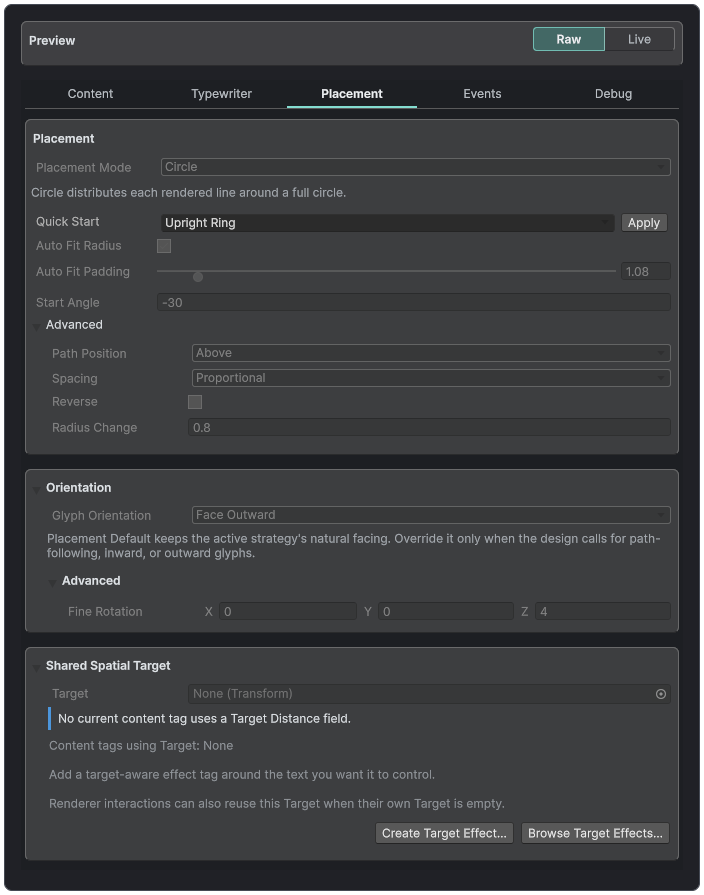
Placement keeps shape, orientation, advanced controls, and a shared spatial target together without rewriting source text.
Unity Splines Placement
Install Unity Splines 2.0.0 or newer, then import the Text Studio Unity Splines integration. Add SplinePlacementProvider, assign a SplineContainer and spline index, and select the provider through the ordinary Placement workflow. Text Studio continues to own source, effects, timing, selection, and dispatch. The provider owns only sampled positions and orientation.
Spatial Effect Target
Open Placement > Shared Spatial Target when several target-aware effects should follow the same player, cursor, controller, camera point, or gameplay object. Assign a Transform for runtime use. Text Studio snapshots its local and world positions and refreshes visual state when either the text owner or target moves.
The inspector shows whether the target is ready and which active effects consume it. Create Target Effect starts a compatible Composed Effect from the selected object. Browse Target Effects filters the available catalog to useful target-aware starting points. The scene radius handle visualizes the authored influence radius without moving the target itself.